
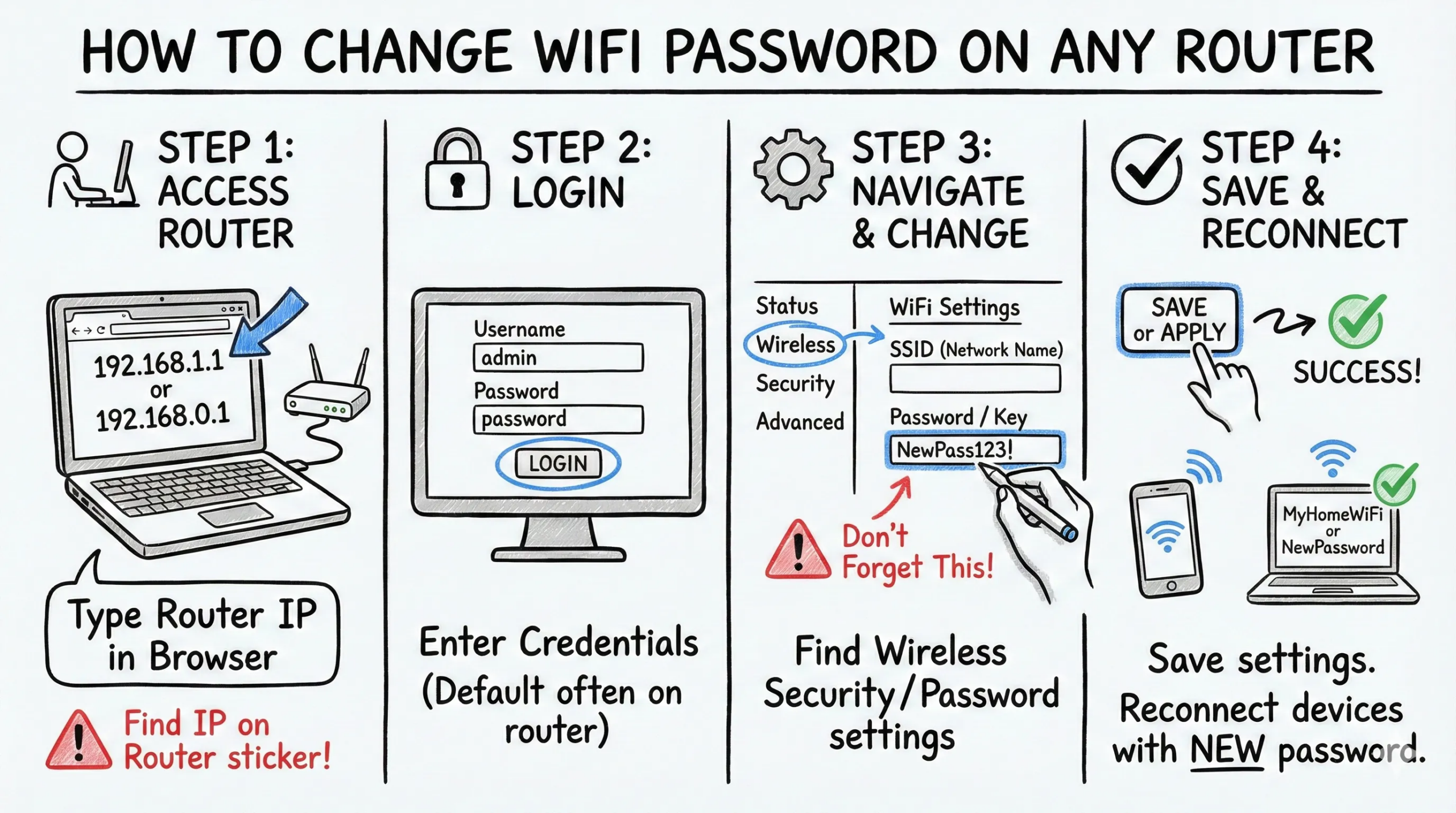
Picture this. The internet feels slow, video calls freeze, and streaming buffers for no clear reason. A quick check of connected devices shows names that do not belong in the home or office. At that point, one thought comes up again and again – it is time to learn how to change WiFi password and lock things down properly.
WiFi password management looks simple on the surface, yet many people leave their network on the factory settings for years. That default password on the sticker under the router is often public knowledge for attackers and curious neighbors. When the password never changes, the door stays half open for bandwidth thieves, data snooping, and all sorts of trouble.
I work on this problem from both sides. I am Afroz Ahmad, a CCIE and CCNA certified network engineer with more than 18 years of hands‑on experience with service providers, data centers, and enterprise networks. Through my blog and guides I help home users, students, and engineers understand not only how to change a WiFi password, but also why the small details matter for long‑term safety.
In this guide I walk through a universal method that works on almost any router, quicker paths for Xfinity and Verizon customers, and practical best practices that I use in real‑world networks. I also cover reconnecting every device, fixing common issues, and tightening security beyond a simple password change. By the end, anyone from a new home user to a CCIE candidate will have a clear, repeatable process that works on any device and any router.
“Security is a process, not a product.” – Bruce Schneier
Changing your WiFi password is one of the simplest parts of that process.
Why Changing Your WiFi Password Is Critical For Network Security
Every router leaves the factory with a default WiFi name and password. Attackers collect these defaults in public lists, and automated tools try them against nearby networks in minutes. If the network still uses that default string from the label, breaking in can be as easy as standing on the sidewalk and clicking a button.
Even when the password changed once in the past, it often spreads wider than planned. Guests, contractors, neighbors, and old roommates keep it on their phones and laptops. A weak or over‑shared password turns into a free internet service for people who no longer belong on the network. That extra traffic can slow down streaming and game updates, but more important, it can put private data and devices at risk.
Good security starts with clear moments to act. I always advise a password change:
When moving into a new place
After sharing the password with visitors
When a phone, tablet, or laptop is lost or stolen
Any time strange devices show up in the router’s client list
When speeds feel slow for no clear reason and other causes are ruled out
For small businesses and remote workers, strong WiFi credentials also connect to company policy and industry rules. A weak network key near sensitive customer data can put the whole business at risk. Regular password updates bring better performance, tighter privacy, and clear control over who connects.
Understanding Your Router: Essential Prerequisites
Before anyone tries to figure out how to change WiFi password, it helps to collect a few key details about the router. When this preparation step is done right, the whole process feels calm instead of rushed. I always start by checking the physical label on the device and confirming the router IP address from an actual device on the network.
This short prep work avoids the most common headache I see in comments and emails – getting locked out midway because the admin login or address was wrong. With the information in place, the rest of the guide becomes a series of clear, simple steps.
Locating Your Router’s Critical Information
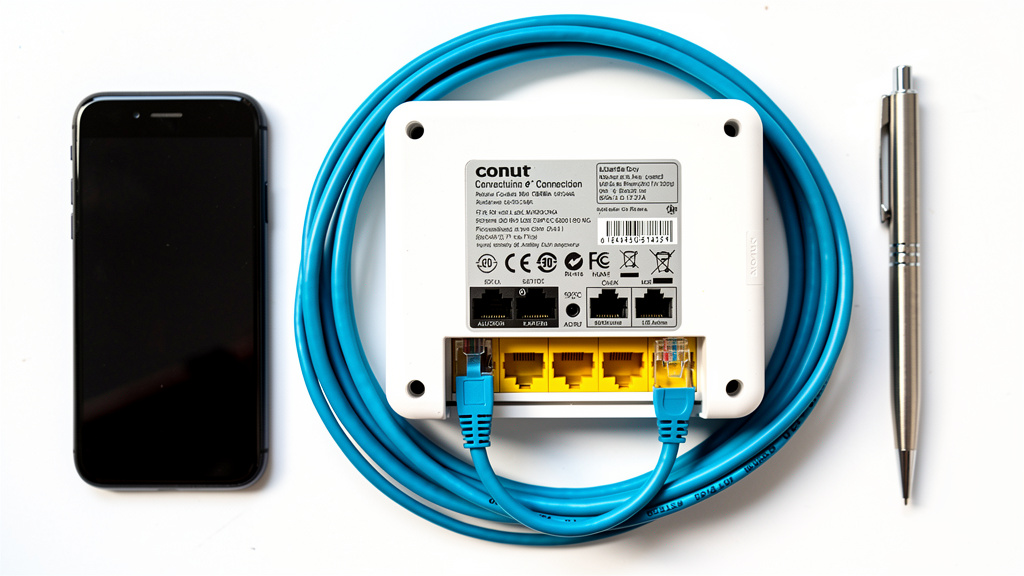
Most home and small business routers ship with a sticker on the back, side, or bottom of the device. This small label usually carries:
The factory SSID (WiFi name)
The default WiFi password
The router IP address
The admin username and password
I like to take a clear photo of that label so I do not need to flip the router every time I check something.
It is important to separate two types of credentials mentioned on that label:
WiFi name and WiFi password – control how phones, laptops, and smart devices join the wireless network.
Admin username and admin password – control who can change router settings, including the WiFi password.
For the steps in this guide, that admin pair matters the most, because it gives access to the configuration page.
If the label has worn off or the router sits in a tricky place, there are still options: If you need help locating your router credentials, many internet providers print the same information in the welcome booklet or account portal.
Many internet providers print the same information in the welcome booklet or account portal.
Router makers publish default admin credentials on their websites for each model.
A quick search for the exact model number printed on the case usually brings up the defaults.
Finding Your Router’s IP Address
The router IP address is the gateway that leads to the admin page. On many home networks it uses a familiar pattern such as:
192.168.1.1192.168.0.110.0.0.1192.168.1.254
If the label shows one of these addresses, that is the one to try first when learning how to change WiFi password.
When the label does not list the address, I confirm it from a connected device:
Windows: open Command Prompt, type
ipconfig, press Enter, and look for the Default Gateway entry.macOS: go to System Settings → Network, select the active interface, tap Details, and read the Router value.
iPhone / iPad: Settings → Wi‑Fi, tap the i icon next to the connected network, check the Router line.
Android: Settings → Network & Internet → Wi‑Fi, tap the gear next to the current network, look for Gateway.
If all else fails, the last option is to check the ISP help pages or the router vendor site for the common default address for that specific model.
The Universal Method: Changing WiFi Password Through Your Router’s Admin Panel
No matter which internet provider or router brand someone uses, there is a direct method that almost always works. It relies on a browser and the router admin page instead of any special app. I teach this first, because once a person understands it, they can apply the same idea to nearly every network they touch.
In this section I walk through a stable connection, the login page, the admin credentials, the wireless settings, and the actual password change. Even if an ISP app exists, I still like this method as a backup when that app misbehaves.
Step 1: Establishing A Stable Connection
During a password change I prefer a wired connection between computer and router. An Ethernet cable from the computer to one of the LAN ports on the router keeps the session alive, even when the WiFi password changes and all wireless devices drop. That way the save action finishes cleanly.
If a wired connection is not possible, it is still possible to work over WiFi, but it takes more care. As soon as the new password applies, the current device loses its connection and must rejoin with the new password. On a phone or tablet, mobile data can stay active in the background, which helps if anything goes wrong and extra instructions are needed online.
Step 2: Accessing The Router Login Page
Once the device connects to the network, I open a web browser such as Chrome, Firefox, Safari, or Edge. In the address bar at the top, I type the router IP address that I confirmed earlier and press Enter. It is important to place it in the address bar, not the search box, so the browser goes directly to the router instead of a search engine.
On some routers the browser shows a warning that the connection is not secure. That happens because the router uses a simple local certificate, not one from a public authority, and on a home network that is normal. I bypass that warning and continue to the admin page. If nothing loads, I double‑check the IP address, confirm the device still sits on the correct WiFi or wired network, and test any alternative address printed on the label.
Step 3: Logging Into The Admin Interface
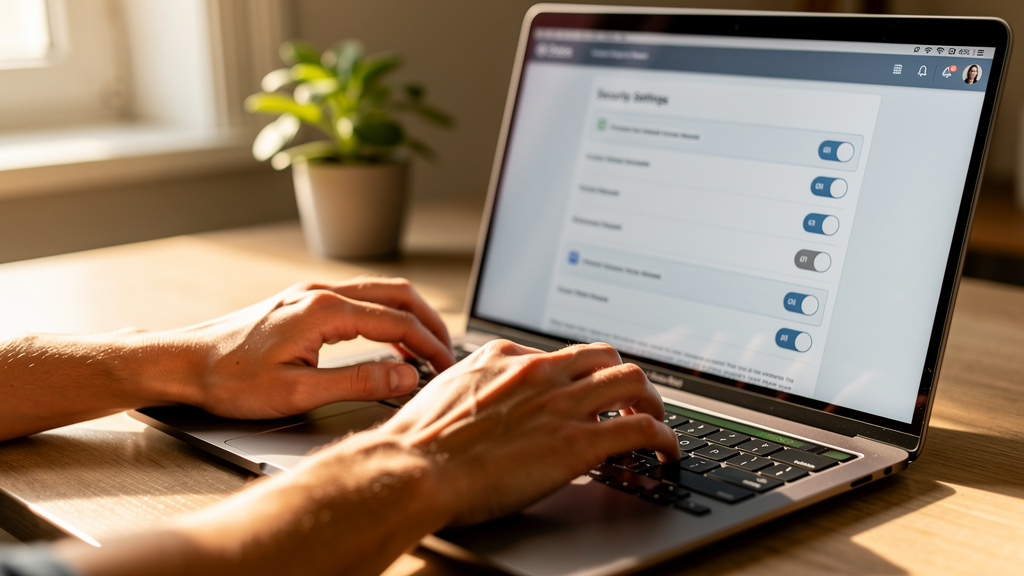
The router now asks for an admin username and password. I start with the pair printed on the sticker or provided by the ISP. Common defaults use admin as the username with admin, password, or a blank field as the password. Some newer ISP routers print a more complex admin password on the label for better safety.
If that pair fails, I think back to any custom password I may have set in the past. When nothing works, the only guaranteed way back in is a factory reset through the small recessed button on the router. That reset clears all custom settings, so I treat it as a last resort and only use it when every other path has closed.
Step 4: Navigating To Wireless Security Settings
After a successful login, the router dashboard appears, and menu labels vary a lot between brands. I look for sections with names such as Wireless, Wi‑Fi, Wireless Settings, Wireless Security, or Network.
Common examples:
Netgear / TP‑Link – under a Wireless tab
Asus – Wireless or Wireless General
Linksys – Wireless → Basic Settings
Many modern routers group 2.4 GHz and 5 GHz radios together, while others show separate pages for each band. The main items I look for are:
SSID fields (WiFi name)
Security mode (WPA2, WPA3, etc.)
The box that holds the WiFi password
Before I change anything, I like to take screenshots of each page. Those images act as a safety net if I want to roll back later or recreate the settings on a new router.
Step 5: Updating Your WiFi Password
Inside the wireless security settings there is always a field for the network key. Different vendors label it Password, Passphrase, Network Key, WPA‑PSK Key, or Pre‑Shared Key, but they all control the same WiFi password used by devices. I delete the old value and type a new, strong password that follows the rules described later in this guide.
This page is also a good place to:
Update the WiFi name (SSID) if it still shows the router brand and model
Check that security mode uses WPA2‑PSK (AES) or, even better, WPA3‑Personal if all devices support it
Confirm that older options named WEP or plain WPA are not selected
I keep the “show password” box enabled while I type so I can spot any mistake, and I often let a password manager generate a long random passphrase for extra strength. Once the new values look correct, I hit Save or Apply and wait for the router to update and briefly restart its wireless service.
For those seeking to upgrade, researching the best wifi 7 routers for homes can provide insights into the latest technology offering superior speed and coverage.
ISP-Specific Methods: Streamlined Password Management
Many internet providers now offer apps and web portals that hide the complex router menus and present simpler tiles instead. When readers ask me how to change WiFi password on a specific ISP, I normally start with these tools, because they are quick and designed for non‑engineers. If something does not work, the universal method above always remains as a backup.
Here I focus on Xfinity and Verizon, since they are common in the United States. I also mention other large providers so there is a clear path no matter which service someone uses.
Changing Your Xfinity WiFi Password
For most Xfinity customers, the Xfinity app on a phone or tablet is the easiest way to handle WiFi changes:
Sign in with your Xfinity ID.
Tap the Wi‑Fi tab.
Open Wi‑Fi details → Edit Wi‑Fi settings.
Change the WiFi name and password.
Tap Save and wait for the gateway to update.
Newer Xfinity gateways from the XB6 series and above often have a feature called WiFi Intelligence turned on by default. This feature manages channels, bands, and some settings automatically and, as a side effect, it disables many options in the old local admin tool. When WiFi Intelligence stays active, the app becomes the main supported method to change the WiFi password.
Customers with older XB2 or XB3 gateways, or with WiFi Intelligence turned off, still have access to the classic web admin page. The steps follow the universal method, except the default address is 10.0.0.1 instead of 192.168.1.1:
Enter
10.0.0.1in a browser.Log in with username admin and password password, unless those values changed before.
Go to Gateway → Connection → Wi‑Fi.
Edit the network name and key, then save.
When a home uses an Xfinity X1 TV box, there is a handy way to view the current WiFi password without changing anything. With the voice remote, press the microphone button and say “What is my WiFi password?” and the information appears on the TV.
Changing Your Verizon Fios WiFi Password
Verizon Fios customers with a Fios Quantum Gateway or Verizon Fios Advanced Router can manage WiFi through the My Verizon portal:
Sign in at the Verizon website.
Hover over Services → Internet.
Find the My Network section.
Pick the network you want to adjust and click Manage.
Type the new WiFi name and password, then save.
Those Fios routers usually treat the 2.4 GHz and 5 GHz radios as one network for password purposes. Even if the names differ slightly, the same key works for both bands.
Verizon also offers the My Fios app, which mirrors these functions on a phone. For customers with older standalone routers that are not part of the supported Fios line, the universal admin page method at 192.168.1.1 is the right path instead.
Other Major ISP Methods: Brief Overview
Other large providers follow similar patterns:
Spectrum – often encourages use of the My Spectrum app, but many setups still require the direct router admin method.
Cox – gateways usually sit at
192.168.0.1; WiFi password lives under Wireless or Wi‑Fi settings.AT&T – promotes Smart Home Manager and also supports a web portal at
http://gateway.att.comfor gateway configuration.
If a provider is not listed here, the best move is to search the ISP help center for “change WiFi password” along with the router model name. When those pages feel confusing, the universal process at the start of this guide still works in nearly every case.
Advanced Router Configuration And Security Best Practices
Once someone understands how to change a WiFi password through the admin panel or ISP app, the next step is to harden the whole wireless setup. In enterprise networks I treat the WiFi password as one small part of a larger security picture. The same thinking helps at home and in small offices as well.
In this section I share the password rules I use, explain how to pick a smart SSID, and point out which security protocol settings to pick inside the router.
“The most secure password is the one you never reuse.” – Common admin saying
Creating An Unbreakable WiFi Password
A strong WiFi password starts with length. I aim for at least 12–16 characters, and for sensitive networks I go higher. A longer passphrase resists guessing attacks far better than a short string packed with symbols.
Character variety still helps, so I mix:
Uppercase letters
Lowercase letters
Numbers
Symbols
Research on the psychology of password management shows that users often struggle to balance security with convenience, which is why I avoid names, birthdays, addresses, pet names, and common words that appear in dictionaries or breach lists. Instead, I like to pick four unrelated words and connect them with numbers and symbols, such as:
Sunset-Mountain-42!River
Password managers can also generate random strings that far exceed what most people can invent, and they store them safely so memorization is not needed.
Optimizing Your Network Name SSID
The SSID (WiFi name) matters for both privacy and ease of use. Leaving it at the default often reveals the exact router brand and model, which gives attackers an early hint about known flaws. I always change the SSID to something simple and neutral that does not reveal a last name, apartment number, or company name.
Dual‑band and tri‑band routers often offer separate names for the 2.4 GHz, 5 GHz, and even 6 GHz radios. For most homes I prefer one shared name and password across all bands so devices can move between them based on signal quality. That behavior, often called band steering, keeps phones on faster bands when close and shifts them to longer‑range bands when far away.
Some advanced users hide the SSID to reduce casual scanning, but this can create connection issues for certain devices, so I use that option only when the trade‑offs are well understood.
Upgrading Your Wireless Security Protocol
Inside the wireless settings there is a menu for security mode. When hardware allows it, I pick WPA3‑Personal, because it offers stronger protection against offline guessing and improved encryption over earlier standards. Many new phones, laptops, and routers support WPA3.
If some devices cannot handle WPA3, WPA2‑Personal with AES still provides solid protection and remains the minimum I accept on any network I manage. Older modes labelled WEP or plain WPA should never stay enabled, even as a backup mode, because public tools can crack them very quickly.
Some routers offer mixed WPA2/WPA3 modes for compatibility, which can be a good bridge during upgrades. I also like to check from a connected device which protocol it reports under its WiFi connection details, just to confirm that the expected mode is active.
Reconnecting Your Devices After Password Changes

As soon as the new WiFi password takes effect, every wireless device that used the old password drops off the network. Phones, laptops, smart TVs, streaming sticks, game consoles, printers, cameras, and light bulbs all try to reconnect with the stale key and fail. This part often surprises people more than the password change itself.
I take a systematic approach:
Main devices – phone, laptop, desktop.
Open WiFi settings.
Select the network and choose Forget or Remove.
Connect again with the new password.
Entertainment gear – smart TVs, streaming boxes, consoles.
Go to Network or Wi‑Fi settings.
Pick the correct SSID and enter the new password.
Test while the device is close to the router.
Smart home devices – cameras, doorbells, plugs, bulbs.
Use their companion apps to update WiFi details.
Some require pressing a small reset button before they accept new settings.
During this process I like to make a quick device list. That list doubles as a simple inventory, makes later audits easier, and helps spot old or unknown devices that no longer need access.
If any device refuses to come back online, I restart it and restart the router to clear any stuck state. Careful attention to uppercase and lowercase letters in the password also matters, since a single mismatch can cause a stubborn failure.
Troubleshooting Common Password Change Issues
Even with clear steps, learning how to change WiFi password can still cause a few bumps. Routers may not respond, admin passwords vanish from memory, or some devices refuse to reconnect. I see the same patterns often enough that I keep a standard playbook ready.
The next few sections walk through the problems I hear about most often and the fixes I use personally.
“I Can’t Access My Router’s Admin Page”
When the router login page will not load, I first confirm that the device sits on the correct network. If it connects to a guest SSID or mobile hotspot instead of the main WiFi or Ethernet, the router IP will never answer. Once the right network is confirmed, I retry the IP address in the browser, watching carefully for any small typing mistake.
If 192.168.1.1 does not respond, I test 192.168.0.1, 10.0.0.1, and 192.168.1.254, since those are common defaults. I may also:
Clear the browser cache
Try a private window
Switch browsers
Security software and firewalls sometimes block access as well, so a short test with them disabled can reveal that issue. Finally, I remember that some ISP gateways disable local admin access and only allow changes through the provider app or portal, so I check the ISP help pages if nothing else works.
“My Admin Password Doesn’t Work”
When the admin password seems wrong, I go back to the basics. I read the label again and enter the username and password slowly, paying close attention to case, similar characters, and any extra spaces. If that still fails, I try any older custom passwords I might have set before, since the router never resets them on its own.
If every guess fails, the only guaranteed fix is a factory reset using the small recessed Reset button on the router. Pressing it firmly for 10–30 seconds restores all settings to factory defaults, including:
Admin account
WiFi name
WiFi password
Any port forwarding or special rules
After that reset, I log in with the default admin credentials, redo the internet setup if the ISP requires it, and then set new strong passwords for both admin and WiFi.
“Devices Won’t Reconnect After Password Change”
When devices refuse to join the network after a password change, the cause is usually simple. A single mistyped character in the password field can pass the eye test but break every connection attempt. I go back into the router settings, reveal the password, and compare it carefully to what I typed on the device.
If the password matches, cached data may be to blame. On the device I:
Choose Forget or Remove for that WiFi network
Restart the device
Connect as if it were brand new
A quick router restart also helps clear any stale sessions. For smart home devices that still will not join, I follow the vendor instructions for a small reset and go through their onboarding flow again. I also make sure the device supports the band it tries to use, since some older gear only works on 2.4 GHz even when it can see a 5 GHz SSID with the same name.
Additional Network Security Measures Beyond Password Changes
Changing the WiFi password is a strong step, but it is only one part of a safer network. In my work with companies and home users, I almost always pair password updates with a few extra configuration changes. These steps add layers of protection so a single mistake does not leave the whole network open.
Key actions I recommend:
Change the router admin password
Never leave it at the factory value.
Do not reuse the WiFi password.
Store it in a password manager or other secure place.
Enable a guest WiFi network (when available)
Use a separate SSID and password for visitors
Keep guest devices away from printers, file shares, and other sensitive gear.
Consider placing simple smart home devices on the guest network.
Keep router firmware updated
Vendors publish updates that fix security issues and bugs.
Check for updates a few times per year under Administration or Firmware.
Enable automatic overnight updates when your router or ISP gateway offers them.
Disable WPS (WiFi Protected Setup)
The PIN method has known weaknesses.
Turn it off unless there is a very good reason to keep it.
Finally, I set a reminder to review the WiFi password and connected device list every three to six months. This routine turns security from a one‑time project into a regular habit.
Key Takeaways
Regular WiFi password updates protect against strangers quietly using the network and reduce the risk of data exposure. A password change after moving home, losing a device, or sharing access with guests is an easy win and takes only a few minutes.
The universal browser method to reach the router admin page works across almost every brand and ISP. Once the router IP address and admin credentials are known, the same pattern of logging in, finding Wireless or Wi‑Fi settings, and changing the password applies nearly everywhere. ISP apps from Xfinity, Verizon, and others simply wrap this method in a friendlier interface.
Strong passwords, smart SSID choices, modern security modes, guest networks, and firmware updates all work together to protect a home or office network. Learning how to change WiFi password is the starting point, but pairing that skill with these extra steps brings protection closer to what I deploy in enterprise environments
.
Conclusion
WiFi password management might look like a small technical chore, yet it has a big effect on both safety and performance. By learning how to change WiFi password through the router admin page or ISP tools, anyone can cut off unwanted users, refresh old access, and give their network a clean start. The short time spent reconnecting devices pays back in more stable speeds and fewer privacy worries.
In this guide I walked through universal steps, provider apps for Xfinity and Verizon, ways to fix common problems, and advanced practices like strong passphrases, modern security protocols, and guest networks. These are the same habits I apply as a CCIE‑level engineer when I build and review wireless networks for clients. Passwords are only one piece of network defence, but they sit at the front door, and that door should never stay half open.
If this guide helped, set a calendar reminder for the next password review and take a few minutes to scan connected devices on the router. When ready to go deeper, explore more of my articles by Afroz Ahmad, where I bridge enterprise networking knowledge with clear, practical advice for homes and small businesses.
FAQs
Question 1: How Often Should I Change My WiFi Password?
For most home networks, I suggest changing the WiFi password every three to six months. Any time the password has been shared with visitors, an employee or roommate moves out, or a device is lost, I change it right away instead of waiting. Higher‑risk setups, such as small offices with sensitive data, may follow stricter schedules based on company policy.
Question 2: Will Changing My WiFi Password Improve Internet Speed?
Changing the WiFi password can improve speed if unknown or unnecessary devices have been using the network. When the new password takes effect, every device disconnects and must reconnect with fresh permission, which removes silent bandwidth users in one step. I also review the router client list after the change to spot any unfamiliar entries. If speeds remain poor, the cause may be the ISP plan, weak signal, or old hardware rather than the password itself.
Question 3: What Happens If I Forget My New WiFi Password Immediately After Changing It?
If I still have a computer connected with an Ethernet cable, I simply log back into the router admin page and read or change the WiFi key there. A password manager, secure note, or even a written record in a safe spot can also save the day if I recorded the password before hitting Save. When no device remains connected and no record exists, a factory reset of the router is the only way back, which restores the default WiFi password from the label.
Question 4: Can I Change My WiFi Password From My Phone?
Yes, it is completely possible to change a WiFi password from a phone. ISP apps from providers such as Xfinity, Verizon, and AT&T are often designed exactly for this purpose, with simple screens for editing the name and password. It is also possible to use a mobile browser, type the router IP address, and follow the same admin steps described earlier. The main thing to remember is that the phone will drop off WiFi when the password changes, so mobile data or a second device can help if more instructions are needed.
Question 5: Do I Need To Change Passwords For 2.4 GHz And 5 GHz Separately?
On many modern routers, a single WiFi password applies to both the 2.4 GHz and 5 GHz bands when they share the same SSID. In that case, one change updates both bands at once and devices choose the best band automatically. Some setups use separate SSIDs for each band, and a few allow different passwords, although that can create confusion. For most people I recommend using the same strong password on both bands to keep connection steps simple while staying secure.
Question 6: What Is The Difference Between The WiFi Password And The Router Admin Password?
The WiFi password (network key or passphrase) is what phones, laptops, and other devices enter to join the wireless network. The router admin password controls who can log into the router configuration page at addresses like 192.168.1.1 or 10.0.0.1. Both passwords matter, but they serve different roles. I always change them away from factory defaults, keep them different from each other, and store the admin password in a secure place, since anyone with that key can change every router setting.
Question 7: Is It Safe To Write Down My WiFi Password?
Writing down a WiFi password can be safe if the note stays in a secure place such as a locked drawer or safe. In most homes, a person who has physical access to that note also has direct access to the network anyway, so the extra risk is small. I still prefer a password manager for long‑term storage, especially for admin passwords. For visitors, a guest network often works better than sharing the main WiFi password, since it keeps their devices separated from important equipment.

- pfSense 10G Home Lab Setup: Complete Hardware Guide (2026) - April 1, 2026
- Best Budget Home Lab Setup Under $300 (2026): Complete Starter Stack - March 30, 2026
- Best Modems for Spectrum: Top DOCSIS 3.1 Picks That Actually Work - March 28, 2026