
Affiliate disclosure: As an Amazon Associate, I earn from qualifying purchases.
Open your router’s admin page (usually 192.168.1.1 or 192.168.0.1) and log in. Then go to Wireless or Wi-Fi Settings and replace the Wi-Fi password (the WPA/WPA2/WPA3 key). If you rent a gateway from your ISP, change it in the provider’s app instead — Xfinity, Verizon, and Cox all support this. Then reconnect your devices with the new password.
This free tool charts every 2.4, 5 and 6 GHz channel, scores the networks your own router can see, and names the clearest one to set. It takes about twenty seconds, there is no signup, and nothing you type leaves your browser.
Check my Wi-Fi channel → No signup · runs in your browserThis guide covers both routes: the universal admin-panel method for any router you own, and the app methods for the biggest ISP gateways. It also replaces outdated password-rotation advice with what current security standards actually recommend.
Before you start: two passwords, one job each
Your router has two different passwords. The Wi-Fi password (network key) lets devices join your wireless network. The admin password (router login) protects the settings page itself. This guide changes the Wi-Fi password; if you cannot log in to the admin page at all, see the troubleshooting section below.
- Wi-Fi password
- the password devices type to join your network. Also called the network password, wireless password or PSK.
- Router admin password
- the password you type to open the router’s own settings. It is often printed on the router label, and it protects every setting including the Wi-Fi password.
- SSID
- the network name your devices see in the Wi-Fi list. Changing the password does not change the SSID.
- WPA3
- the current Wi-Fi security certification from Wi-Fi Alliance. Use it when your devices support it; WPA2 remains acceptable for older devices that cannot.
- Passphrase
- a password built from several random words. It is easier to remember and easier to type on a TV remote than a short jumble of characters.
Use a phone or computer connected to your network (Wi-Fi or Ethernet). Most routers expose the admin page at 192.168.1.1, 192.168.0.1, or 10.0.0.1; the exact address and default admin password are printed on the router label. When your browser warns that the connection is not secure, that is normal: routers use a local self-signed certificate. Check that the address bar shows your router’s IP exactly, then continue to the login page.
The universal method: change your Wi-Fi password in 5 steps
Brand shortcuts: where the Wi-Fi password setting hides
Menu names differ by brand and firmware. The setting always lives in the wireless security section of the admin panel or the brand’s mobile app.
| Router brand | Where to change the Wi-Fi password | Official guide |
|---|---|---|
| TP-Link | Web UI: Advanced > Wireless > Wireless Settings > Password field; or the TP-Link Tether app | TP-Link FAQ 3085 |
| NETGEAR | Web UI: Wireless settings; or Nighthawk app: WiFi Settings > select network | NETGEAR KB 23439, Nighthawk app guide |
| ASUS | Web UI: Wireless > General > WPA pre-shared key; or ASUS Router app | ASUS FAQ 1011433 |
| eero | eero app only: Settings > Wi-Fi name & password | eero support |
Other brands follow the same pattern: log in to the router’s IP, open Wireless/WLAN settings, and edit the WPA key. If your router’s interface has been customized by an ISP, use the ISP app below instead.
Changing the Wi-Fi password on rented ISP gateways
Xfinity Xfinity app
Open the Xfinity app, sign in, select Connect, then Wi-Fi, choose your network and tap Edit to update the name and password. Xfinity gateways broadcast separate 2.4, 5 and 6 GHz signals; you can also unify them into one name. Rented-gateway changes sync automatically. See Xfinity’s official guide.
Verizon Fios My Verizon
Fios Quantum Gateway and newer Verizon routers manage Wi-Fi credentials through My Verizon (web or app). Sign in, choose Internet, select your network, and edit the SSID or password. Verizon supports separate passwords per band. Official instructions: Verizon Fios support. If a Fios router misbehaves after the change, the Verizon router reset guide walks through the safe sequence.
Cox Panoramic Wifi Cox app
Cox manages Wi-Fi credentials through the Cox app with Panoramic Wifi settings for CGM4141, CGM4331, CGM4981, TG4482 and TG1682 gateways. Open the app, sign in with your Cox credentials, and edit the Wi-Fi network name and password under the network settings. Official reference: Cox Panoramic Wifi app features.
What makes a good Wi-Fi password (current guidance)
Ignore the old "change it every three months" advice. Current NIST guidance favors length over complexity: long passphrases beat short random strings, and forced periodic changes are no longer recommended without evidence of compromise.
Go long: at least 15 characters. A four-random-words passphrase beats a short password full of symbols. Change it when there is a reason. You shared it with someone who moved out, a device was lost, you suspect unauthorized access, or it is still the factory default. Otherwise there is no need. Use WPA2 or WPA3: if your router still offers WEP or WPA-only modes, update the firmware or replace hardware that old. Keep the admin password different from the Wi-Fi password, and change the admin default too.
If your router no longer receives security updates, replacing it is the stronger security move — see the troubleshooting notes on firmware below.
Verifiers and CSPs SHALL require passwords that are used as a single-factor authentication mechanism to be a minimum of 15 characters in length.NIST, SP 800-63B: Digital Identity Guidelines — Authentication and Lifecycle Management (4th revision), read 1 October 2026
If your router only offers WEP or WPA, or it has no app and the settings are buried, no password change makes it secure. Both routers below are Wi-Fi 6 with WPA3 and a phone app for exactly this screen, so changing the password stops being a hunt through menus.
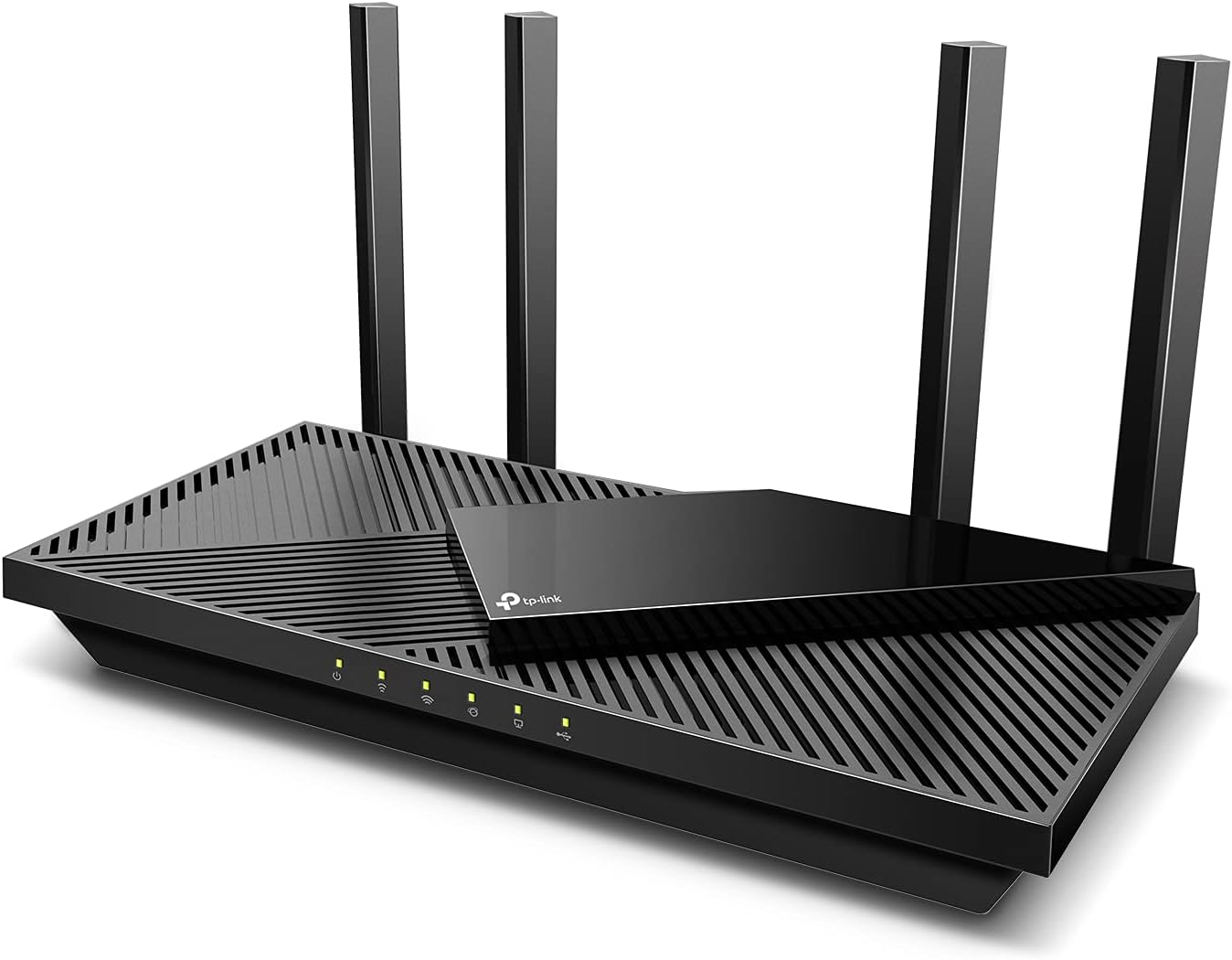
TP-Link Archer AX55 (AX3000)
- WPA3 encryption plus Wi-Fi 6, with HomeShield parental controls
- 1 Gigabit WAN + 4 Gigabit LAN ports
- The Tether app changes the Wi-Fi password from your phone
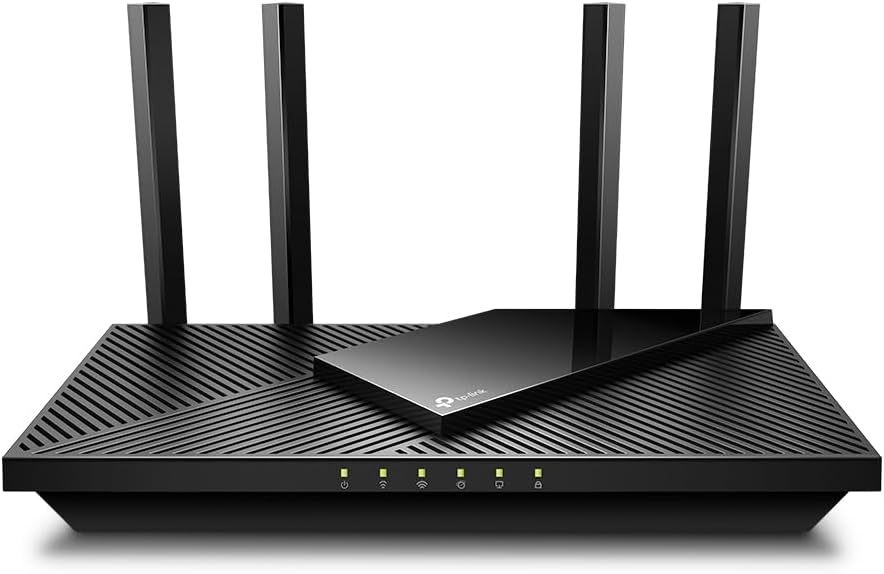
TP-Link Archer AX21 (AX1800)
- WPA3 and Wi-Fi 6, up to 1.8 Gbps
- 1 Gigabit WAN + 4 Gigabit LAN ports
- Works with Alexa and the Tether app
Reconnecting your devices after the change
Every saved device drops offline the moment the password changes. On phones and laptops, open the Wi-Fi list, select your network, choose Forget, then reconnect with the new password. Smart TVs, printers, cameras and smart-home hubs need their Wi-Fi settings updated individually — devices with a setup app usually prompt you on next launch. If devices stay connected but the internet seems broken, work through the connected-but-no-internet checklist before changing more settings.
Troubleshooting common password-change problems
"I can’t reach the router’s admin page"
Confirm you are on the router’s network, retype the exact IP (it is on the label), and try a wired connection. A mobile hotspot or a VPN can silently move you off the router’s subnet. If the page still will not load, the router may be using an address printed on its label under “gateway” or “login IP.”
"My admin password does not work"
Try the label defaults, then any password manager entry. If nothing works, a factory reset restores the default credentials — you will need to reconfigure the network afterward, so photograph your current settings first. For gateway-specific reset steps, see the Verizon reset guide or your manufacturer’s support page.
"Devices won’t reconnect with the new password"
Forget the network on the device and rejoin with the exact new password; check for caps-lock and trailing spaces. If a 2.4 GHz-only smart device refuses to connect, confirm you are joining the 2.4 GHz band. A router that drops devices repeatedly after the change may have stale firmware — update it before blaming the password. For signal-level problems after reconnecting, the modem-light troubleshooting guide helps identify what the hardware is reporting.
Wi-Fi password questions
How often should I change my Wi-Fi password?
Change it when there is a reason. The password was shared and should no longer be valid. A device was lost or sold, you spot an unknown device, or the password is still the factory default. Routine calendar-based rotation is not required by current standards. Length and WPA2/WPA3 protection do more for security than scheduled changes. Reviewing your connected-device list occasionally is a healthy habit. Rotating the password on a timer is not.
Will changing my Wi-Fi password make my internet faster?
No. A new password changes who can join, not the line speed. If strangers were leeching bandwidth, removing them helps; otherwise speed problems come from your plan, hardware or placement.
Do I need to change the password for 2.4 GHz and 5 GHz separately?
Only if your router runs separate network names per band. Most modern routers default to one unified name; when bands are unified, one password covers all of them.
Can I change my Wi-Fi password from my phone?
Yes. Log in to the router’s admin page in a mobile browser, or use the brand app (Nighthawk, ASUS Router, eero). Your ISP’s app works too (Xfinity, My Verizon, Cox).
What if I forget the new password right away?
Log back into the admin panel and view or reset the Wi-Fi password there; router labels and the ISP app also show it. As a last resort, a factory reset returns everything to the label defaults.
Should I use WPS instead of typing the password?
WPS push-button pairing is convenient for guests but is the weaker security option on some older routers; prefer sharing the passphrase. The WPS button guide explains when the button is safe to use.
Final takeaways
Log in at 192.168.1.1 (or your router’s label address), open Wireless settings, set a long WPA2/WPA3 passphrase, and reconnect your devices. Change the password when there is a reason, not on a calendar. Keep the admin password separate, and prefer an ISP app over guesswork on rented gateways. If your router cannot run current firmware or WPA2/WPA3, replacing it does more for both security and speed than any password change. Start by confirming whether your router is the bottleneck with the Wi-Fi connected but no internet guide.
Sources and Primary Sources
- NIST, SP 800-63B: Digital Identity Guidelines — Authentication and Lifecycle Management — states that passwords used on their own must be a minimum of 15 characters. It favours length over complexity and no longer recommends periodic rotation. Read on 1 October 2026.
- TP-Link, how to change the wireless password.
- NETGEAR, change the Wi-Fi password or network name on a NETGEAR router and the Nighthawk app method.
- ASUS, changing the wireless password on an ASUS router.
- eero, view or change the network password.
- Xfinity, view or change your WiFi password.
- Verizon, change your Wi-Fi name and password.
- Wi-Fi Alliance, Wi-Fi security: WPA3 — the certification behind the WPA3 guidance in the definitions above.
- Cox, Panoramic Wifi app features.
Afroz Ahmad, “How to Change Your WiFi Password on Any Router”, afrozahmad.com, reviewed 1 October 2026.
https://afrozahmad.com/blog/how-to-change-wifi-password-on-any-router/
About this page. Written by Afroz Ahmad, a CCIE with more than 20 years designing business, ISP and carrier networks. The router and gateway steps come from each maker’s own support documentation, listed above and re-checked on 1 October 2026.

- DOCSIS Explained: 3.0 vs 3.1 vs 4.0 and What Sets Your Real Speed - September 29, 2026
- Router Lights Explained: What the Colours Mean on Any Router - September 28, 2026
- eero Light Is White but There Is No Internet: What to Check - September 28, 2026