Resetting your Linksys router means wiping all your customized settings and returning the device to its factory default state. I would rather suggest starting with a simple reboot or soft reset first, and if that doesn’t fix the issue, then proceed with a factory reset.
You might need to reset your Linksys router for a few reasons:
- Troubleshooting stubborn connectivity issues
- Forgot your router’s admin password
- Selling or giving away your router
- Just feeling the urge to start fresh
Whatever your reason, by the end of this guide, you’ll be a bona fide Linksys router reset rockstar. Let’s get started!
Quick Factory Reset Method
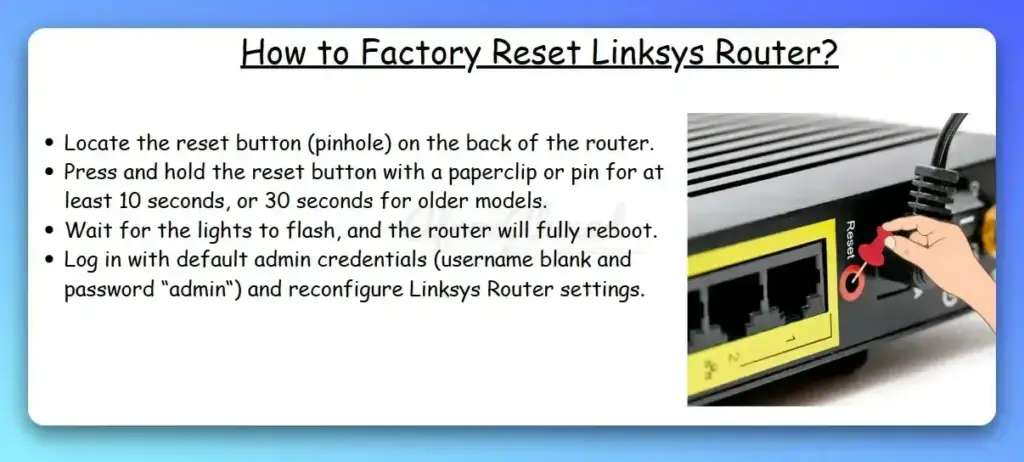
- Locate the reset button (pinhole) on the back of the router. Note: A factory reset erases all custom settings.
- Press and hold the reset button with a paperclip for about 10–20 seconds while the router is powered on, then release when the LED pattern indicates the reset has started.
- Wait for the lights to flash, and the router will fully reboot.
- Log in using the router’s local Router Password (often “admin” if unconfigured) or the unique credentials printed on the product label, then reconfigure your Linksys router settings.
Types of Linksys Router Resets
Before we jump into the nitty-gritty, let’s clarify the difference between a reboot and a reset:
- Soft Reset (Reboot)
- Quickly power cycle your router
- Doesn’t erase your settings
- Great for minor issues or freezes
- Just unplug, wait 10 seconds, and plug back in
- Factory Reset (Hard Reset)
- Completely erases your custom settings
- Returns router to out-of-the-box defaults
- Necessary for major issues or before selling
- Requires either reset button or web/app interface
Now that you’re well-versed in router reset lingo, let’s prep for that soft reset.
Methods to Soft Reset Linksys Routers
Unplug the Power Cable
- Disconnect Power Cable: Unplug the power cable from the back of the router. You may need to locate the power port on the router and gently pull out the power cable.
- Wait: Wait for about 10–15 seconds to ensure that the router is completely powered off.
- Reconnect Power Cable: Plug the power cable back into the power port on the router.
- Power On: Turn on the router by pressing the power button or by connecting the power cable to a power source.
Web-Based Interface
- Access the Router’s Web Interface: Open a web browser and visit myrouter.local (or http://myrouter.local on some models) or enter the router’s IP address. If 192.168.1.1 doesn’t load, the device may be using an alternate IP (for example, 10.0.0.1 or 192.168.10.1).
- Log In: Enter your router’s local Router Password (often “admin” if unconfigured) or the unique admin credentials printed on the product label.
- Navigate to Restart: Go to the Administration or Troubleshooting section and choose Restart or Reboot (do not select Factory Defaults here, as that performs a full reset).
- Perform the Restart: Confirm the action to reboot the router without erasing your settings.
Linksys Mobile App (For newer Linksys routers)
- Connect to Your Router’s WiFi: Use your mobile device to connect to your router’s WiFi network.
- Open the Linksys App: Launch the Linksys app on your device. For iOS devices, tap “Manage Your Wi‑Fi,” and for Android devices, tap “Log in“.
- Access the Menu: Once you’re on the dashboard, tap the menu icon located in the upper-left corner.
- Go to Network Administration: Select the “Network Administration” option from the menu.
- Restart the Network: Tap on “Restart Network” to initiate the restart process.
- Confirm the Restart: You will need to confirm by tapping “Restart” to proceed with the restart.
Now, let’s get into the actual hard reset, aka factory reset of the Linksys router.
Preparing to Factory Reset Your Linksys Router
Before you take the plunge and reset your Linksys router, a bit of preparation goes a long way:
- Backup your router configuration if possible
- Locate your specific router’s model number
- Find the default login info for after the reset
- Have an Ethernet cable handy to reconfigure
- Pour yourself a nice cup of coffee or tea – you’ve got this!
Methods to Factory Reset Linksys Routers
Alright, here we go! You can factory reset a Linksys router either with the hardware Reset button or via software (web UI or the Linksys app, depending on the model). Availability of software reset options varies by model and firmware.
- Locate the Reset Button: Find the reset button on the back or underside of your router. It’s usually recessed to prevent accidental resets.
- Press and Hold: Use a paper clip or a pen to press and hold the reset button for about 10–20 seconds while the router is powered on, then release when the LEDs indicate the reset has started.
- Wait for the Router to Reboot: Release the reset button and wait for the router to fully reboot. Watch for the power lights on linksys router to flash, then stay solid.
- Reconnect Power Adapter: If instructed, disconnect and reconnect the router’s power adapter after the reset.
Now you know how to hard reset your Linksys router, let’s get ready to experience that factory-fresh feeling.
After Resetting Your Linksys Router
Congrats, you did it! Your Linksys router is squeaky clean. Here’s what to expect post-reset:
- All LEDs will flash as the router reboots, and then the power light turns solid
- All settings are wiped, including SSID, admin password and security settings.
- Most current models broadcast a unique default SSID and Wi‑Fi password printed on the product label (older legacy models may use names like “linksys”).
- Connect via Ethernet cable or the default wireless name on the label
- Log in to web admin using the local Router Password (often “admin” if unconfigured) or the unique admin credentials printed on the label (some mesh/ISP variants use label credentials or a recovery key).
- Follow the setup wizard or manually reconfigure settings
- Reconnect Devices: You’ll need to reconnect your devices to the router using the new settings.
And you have successfully reset and reconfigured your entire Linksys Wi‑Fi network—enjoy the clean slate.
Troubleshooting Common Issues
Factory resetting is usually smooth sailing, but small snags can happen. Here are a few troubleshooting tips:
- Router not resetting: Make sure you’re holding the reset button long enough (about 10–20 seconds while powered on) and watch for LED cues.
- Do not use the 30‑30‑30 method: It’s outdated for modern Linksys routers and can be ineffective. Use the standard reset described above.
- Can’t access web interface: Confirm you’re connecting via Ethernet, then try myrouter.local or the router IP. If 192.168.1.1 fails, check for an alternate IP such as 10.0.0.1 or 192.168.10.1.
- Still can’t log in: If you changed the local password and forgot it, perform a factory reset again. For mesh/ISP variants, use the unique credentials or recovery key from the label. If it still fails, contact Linksys support for assistance.
- Linksys router not working after reset: Confirm all cables are securely connected. Reboot modem and router again. Check if LEDs are lighting up normally. You may need to contact your ISP if issues persist.
- Power Light Not Flashing: If the power light doesn’t start flashing during a hardware reset, check power and try again; recent firmware could change LED behavior.
- Accessing the Setup Page: If you can’t launch the setup page after a reset, ensure your computer is set to obtain an IP address automatically or has valid DNS numbers.
Remember, resetting your router should be a last resort. But if you must, you’re now armed with the knowledge to do it right.
Conclusion
You’re now a certified Linksys router reset expert. Remember, resetting should be reserved for stubborn issues or when you need a clean slate. Always try a simple restart first and see if that solves the problem.
When in doubt, consult your model’s manual, contact Linksys support, or refer back to this handy guide. Now go forth and conquer those routers—happy resetting!
Frequently Asked Questions
Will resetting affect my internet speed?
No, resetting your router will not directly impact your internet speed. Speed is primarily determined by your ISP plan and connection quality.
Is resetting bad for the router?
No, proper factory resets are perfectly safe and sometimes necessary. Just avoid incomplete resets by always waiting for the full cycle to complete.
How often should I reset my router?
There’s no set rule, but if you’re regularly resetting (more than once a month), you may have other underlying issues to address. Resets should be occasional.
What’s the difference between WRT and E-Series?
WRT routers target enthusiasts and support open-source firmware. E‑series are legacy models that used the Cisco Connect/Classic UI; Linksys Smart Wi‑Fi debuted with EA‑series and continues on many MR/EA devices. Reset procedures are similar across families, with minor differences in LEDs and default credentials.

- pfSense 10G Home Lab Setup: Complete Hardware Guide (2026) - April 1, 2026
- Best Budget Home Lab Setup Under $300 (2026): Complete Starter Stack - March 30, 2026
- Best Modems for Spectrum: Top DOCSIS 3.1 Picks That Actually Work - March 28, 2026