
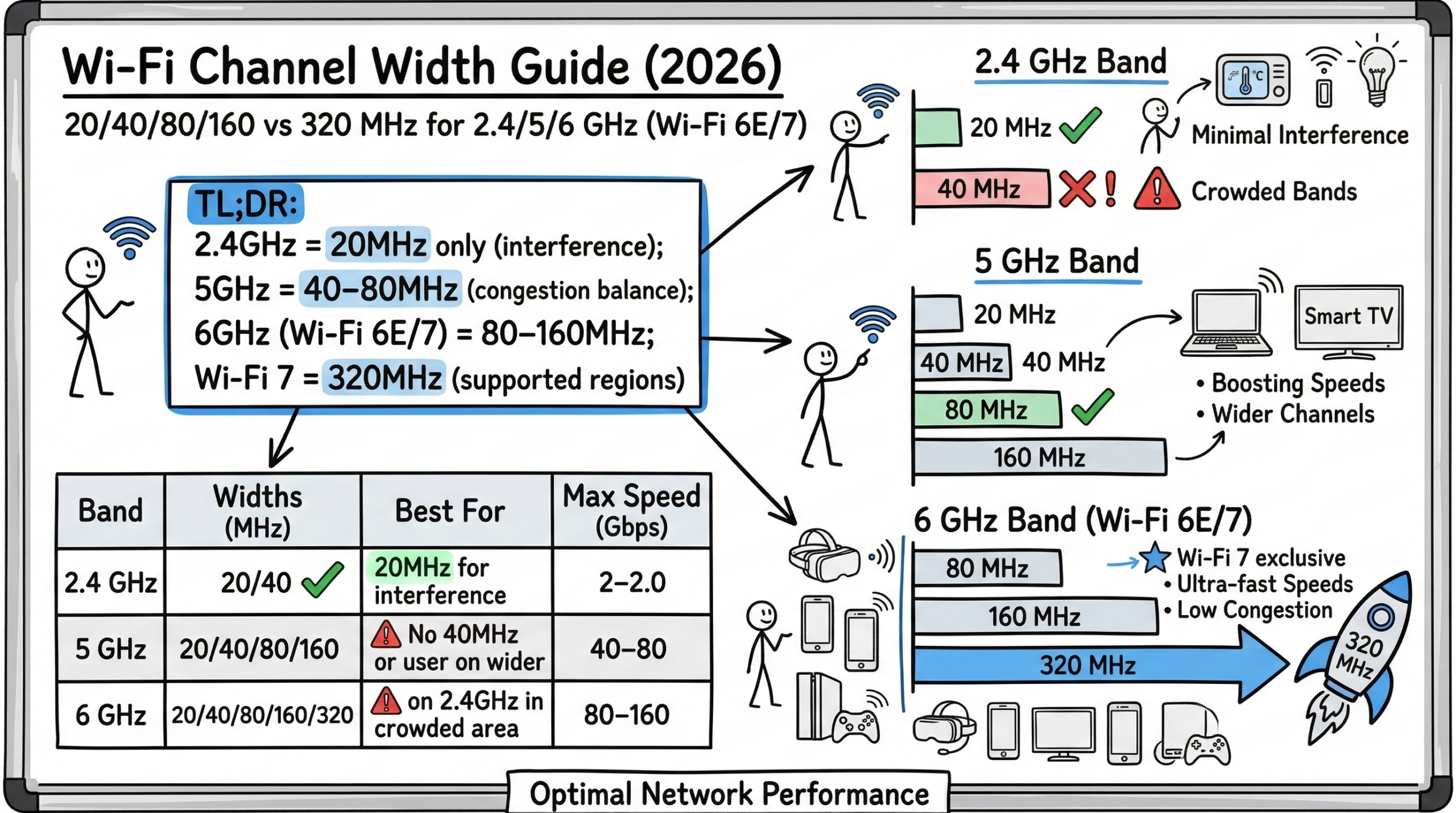
In the digital age, seamless internet connectivity is a must-have, and optimizing your wifi channel width can significantly enhance your Wi‑Fi network’s performance. Whether it’s 20MHz for minimizing interference in crowded 2.4GHz bands or wider 40MHz and 80MHz channels for boosting speeds in the 5GHz range, choosing the right wifi channel width is the key.
TL;DR: 2.4GHz = 20MHz only; 5GHz = 40–80MHz based on congestion; 6GHz (Wi‑Fi 6E/7) = 80–160MHz, with up to 320MHz on Wi‑Fi 7 where supported.
This guide will delve into why channel width matters, how to check yours, and tips for choosing the best width for your needs.
What Is Wi‑Fi Channel Width and Why Does It Matter?
To understand channel width, we first need to explore the basics of Wi‑Fi channels. Wi‑Fi networks operate on specific radio frequency bands that are divided into smaller subsections called channels. Common Wi‑Fi frequency bands include:
- 2.4GHz – Broader coverage, more devices, but higher interference
- 5GHz – Faster speeds, less interference, shorter range
- 6GHz – Newest band for Wi‑Fi 6E/7 with ultra‑fast speeds and wider 80/160/320MHz options (region‑dependent)
Wi‑Fi channels essentially act as different “lanes” for data to flow on. Each channel utilizes a specific central frequency and fixed amount of bandwidth capacity.
Channel width refers to the size of the frequency range or “pipe” allotted to each channel. Wider channel widths allow more data to be transmitted at once. Think of it like adding more lanes to a highway.
Configuring appropriate channel widths is crucial because it directly impacts connectivity speeds and overall network performance. However, there are also trade-offs to consider in terms of device compatibility and interference from nearby networks.
See also: 2.4 GHz vs 5 GHz WiFi Bands
How to Check Your WiFi Channel Width
Now that you understand the importance of configuring the right channel width for your wireless network, you likely want to check what yours is currently set to. Here are two easy ways to view and confirm your Wi‑Fi’s channel width selection.
Check Your Router Settings
Most wireless routers provide administrative access to view and adjust channel settings through a web interface:
- Access by browsing to the router’s IP address (commonly 192.168.1.1 or 192.168.0.1)
- Login with admin credentials (username/password)
- Instead of trying generic defaults, check the router label or companion app for a device‑specific admin password, change it immediately after first login, and consult the manual or your ISP portal if unknown
- Look for Wireless, WLAN, Band or Radio category in menu
- Select 2.4GHz or 5GHz wireless bands
- May be listed separately or under a “Dual-Band Settings” section
- View the “Channel Width” or similarly labeled setting
- Common options: 20MHz, 20/40MHz, 40MHz, 20/40/80MHz, 80/160MHz, 160/320MHz (Wi‑Fi 7)
- Auto width settings can cause rate changes; set a fixed width if you observe instability
For example, popular router brands like Netgear, Linksys, TP‑Link etc. all provide wireless channel/width info under “Wireless Settings” or “Basic WiFi Settings”. If unsure where to find it in your router’s UI, checking its user manual should guide you.
Use WiFi Analyzer Software
Alternatively, you can use free WiFi analysis tools/apps to scan networks in your environment. They provide channel width details for all detected networks, including your own. Useful options include:
- Ekahau HeatMapper – Legacy Windows‑only utility and generally unmaintained; consider modern alternatives for current chipsets and 6GHz visibility
- WiFiAnalyzer (Open‑source) – Android smartphone Wi‑Fi scanning app
- inSSIDer – Free Wi‑Fi scanner for Windows and macOS (account login required for current builds)
- WifiInfoView – Scans and displays Wi‑Fi channels for Windows networks
These utilities let you identify all nearby Wi‑Fi networks by name, band, channel, speeds etc. Your own SSID will be highlighted with additional details like Wi‑Fi mode (802.11n/ac/ax/be) and configured channel width shown. This presents an easy way to check channel width without logging into your router directly, and helps you spot DFS vs non‑DFS channels, PSC primaries in 6GHz, and congestion patterns.
So try using your router’s admin console, or leverage analyzer software to easily validate what channel width is currently set for your 2.4GHz, 5GHz and 6GHz Wi‑Fi networks. This info then helps better optimize configurations for performance.
Wi‑Fi Channels and Frequency Bands Explained
Let’s take a deeper look at the common Wi‑Fi frequency bands and how channel width works within them:
The 2.4GHz Wi‑Fi Band
- Covers 2400‑2483MHz frequency range
- Channel availability is region‑specific: U.S./Canada commonly use channels 1–11; many regions use 1–13; Japan also allows 14 (802.11b only)
- All channels are 20MHz wide by default
- Only channels 1, 6 and 11 do not overlap
- Using overlapping channels causes interference; prefer 1/6/11 for 20MHz
- Supports 802.11b/g/n Wi‑Fi devices
- Provides wider coverage range but slower maximum speeds
- More likely to experience interference from other devices like cordless phones, microwaves etc. that use 2.4GHz frequency
The 2.4GHz band is extremely crowded, so using the narrowest 20MHz channel width is strongly advised. Widening channels here will only worsen interference issues and degrade performance.
The 5GHz Wi‑Fi Band
- Covers 5150‑5850MHz frequency spectrum
- Has a wider pool of up to 25 usable channels depending on region
- Channels are all 20MHz wide by default
- Supports channel bonding to create 40, 80 or even 160MHz “wide” channels
- Bonds together adjacent 20MHz channels
- Enables faster maximum connection speeds up to 1–2Gbps (Wi‑Fi 5/6), and higher with Wi‑Fi 7 features like MLO (device‑dependent)
- More resilient to interference but slightly shorter coverage range
The 5GHz band has far more available channels, so judiciously using wider channel widths can boost throughput here. However, it requires carefully weighing factors like interference and device compatibility.
The New 6GHz Wi‑Fi Band
- U.S. allocation is 5925–7125MHz (U‑NII‑5 through U‑NII‑8), enabling a large number of channels including 14×80MHz or 7×160MHz (and up to 3×320MHz with Wi‑Fi 7 across the full band)
- 6GHz clients prioritize discovery on Preferred Scanning Channels (PSC) every 80MHz; setting your primary channel on a PSC speeds up association
- Supports Low‑Power Indoor (LPI) operation broadly; Standard‑Power operation uses Automated Frequency Coordination (AFC) where permitted
- Enables super fast maximum speeds above 2Gbps, and even higher with Wi‑Fi 7 (320MHz and Multi‑Link Operation)
- By 2025–2026, device support is widespread in routers, phones, and laptops, with AFC‑enabled standard‑power deployments rolling out in North America
The vast open space in 6GHz allows wide 80/160MHz channel widths to become mainstream, while Wi‑Fi 7 enables up to 320MHz where supported. When planning, prefer PSC primaries and verify whether your environment permits LPI only or also standard‑power (AFC) operation.
Recommended Wi‑Fi Channel Widths
Determining ideal channel widths requires understanding your specific environment constraints and device capabilities. However, general guidelines based on each frequency band are:
2.4GHz Channels
- Use 20MHz width only
- Provides 3 non‑overlapping channels – 1, 6, 11 (region‑dependent availability noted above)
- Avoid any channel bonding/widening
- Ensures broadest compatibility and reduces interference
- Fine for moderate bandwidth uses like web browsing, emails etc.
5GHz Channels
- Use 20MHz width where interference is very high
- Up to 8 non‑overlapping 20MHz channels
- Or use 40MHz width for a balance of speed/interference
- Still enables 4 non‑overlapping 40MHZ channels
- Consider 80MHz width for high‑bandwidth applications like video streaming or gaming
- Prefer a fixed width: use 80MHz in low‑to‑moderate congestion and step down to 40/20MHz in dense apartments; exceptions: mesh backhaul links may benefit from wider channels
- Avoid auto 20/40/80MHz if it causes unstable rates (rate‑flapping); choose a fixed width and retest
6GHz Channels
- Use 80–160MHz as primary choices for Wi‑Fi 6E; Wi‑Fi 7 adds 320MHz where supported by devices and regulation
- Most regions allow substantial spectrum for 6GHz; U.S. offers ~1200MHz, while EU/UK offer ~480–500MHz
- Place your primary channel on a PSC for faster client discovery; verify client and AP support before enabling 160/320MHz
Getting the right balance here is key. The wider you go, the more speed you can get – but at the risk of worse interference and compatibility issues if you go too wide.
Special Considerations for DFS Channels
One extra factor to note with 5GHz channels is DFS – Dynamic Frequency Selection. DFS relates to certain 5GHz channels requiring radar detection and automated avoidance. DFS avoids interference but comes with some special caveats:
- DFS channels incur a performance hit from more passive client scanning
- Some client devices don’t support DFS channels at all
- DFS channel radar avoidance can cause temporary channel switching
So mainly stick to non‑DFS channels where possible (e.g., 36–48, 149–165 in the U.S.), and ensure your devices support any DFS channels you plan to use.
Wi‑Fi 6E and Regional 6GHz Spectrum Differences
It’s also important to recognize major regional variations in newly opened 6GHz spectrum channels:
- USA: Up to 1200MHz spectrum unlocked in 6GHz
- Enables super‑wide 160MHz and 320MHz (Wi‑Fi 7) channels
- EU/UK: EU 5945–6425MHz (~480MHz) and UK 5925–6425MHz (~500MHz) support 20/40/80/160MHz for LPI devices; practical 160MHz channels are possible (≈3)
- So what you can/should deploy differs across regions
These differences will impact planning as the new 6GHz space is adopted across Wi‑Fi 6E and Wi‑Fi 7 networks. Check local regulations and your router’s region setting before enabling wider channels.
Best Practices for Channel Planning
Here are some key best practices to ensure optimal Wi‑Fi performance through careful channel planning:
Stick to 20MHz-Only in 2.4GHz
By avoiding any channel bonding on the crowded 2.4GHz channels, you maximize compatibility and minimize interference issues.
Enable Auto Channel Width Selection in 5GHz
Prefer a fixed channel width to reduce rate‑flapping: start with 80MHz in low‑to‑moderate congestion and step down to 40/20MHz in dense environments. Use auto width only if your router’s implementation proves stable in testing; mesh backhaul links may benefit from wider channels.
Choose Non-Overlapping Channels
Carefully select channels that don’t overlap with neighboring Wi‑Fi networks whenever possible. Overlapping channels create signal contention. In 6GHz, prefer PSC primaries for quicker discovery.
Check Client Device Compatibility
Some older client devices may only work on 20MHz networks – so enable lower backwards compatible channel widths. For Wi‑Fi 7 features like 320MHz or MLO, confirm both AP and client support.
Optimize Band Steering Settings
Use band steering to push dual band client devices to 5GHz for higher performance – avoiding overcrowded 2.4GHz. Where available, enable 6GHz (6E/7) for compatible clients and keep a separate SSID or MLO configuration if needed.
Conclusion
There are always trade-offs to consider between speed, interference mitigation and compatibility when configuring Wi‑Fi channels and widths. The best settings depend on your specific environment, devices and applications. With broader 6GHz adoption and Wi‑Fi 7 features like 320MHz channels and Multi‑Link Operation, you can now tailor your channel plan more precisely—favoring fixed widths for stability, PSC primaries in 6GHz, and AFC‑enabled standard‑power where permitted—to maximize performance and reliability.

- Best WiFi 7 Mesh Systems (2026) — Tested & Ranked for Multi-Gig Homes - April 28, 2026
- Best Routers for Verizon FiOS (2026) — WiFi 7 & Mesh Picks Tested - April 13, 2026
- Best 2.5GbE Switches for Home Lab (2026) — Tested & Verified - April 8, 2026