
Are video calls freezing right when a client asks the important question? Does the Wi‑Fi die as soon as everyone in the office joins a meeting at the same time? Moments like these usually mean a simple home router is being pushed far past what it was designed to do.
Many people still think that a business‑grade router means spending a lot of money and hiring an IT consultant. That is no longer true. Finding the best budget router for small business does not mean giving up security, performance, or reliability. The right models under two hundred dollars can handle a small office far better than most home routers.
From my eighteen plus years as a CCIE‑level network engineer, I have seen the same pattern again and again. Research on wireless communication networks shows that proper infrastructure planning is critical for business stability. A small team runs everything on a cheap home router, the network starts choking, and productivity drops. As soon as we move to a proper small business router, the same internet line suddenly feels faster and far more stable.
In this guide I will walk through what makes a router business‑ready, which features matter the most, and how to match specs to a real office, not just a spec sheet. Then I will share seven routers under two hundred dollars that I would confidently deploy in a small office or serious home office. By the end, it should be clear which router on this list fits the way the network actually runs each day.
“The bitterness of poor quality remains long after the sweetness of low price is forgotten.” — Commonly attributed to Benjamin Franklin
Best Budget Router for Small Business (Top 7 Picks)
| Router Model | Wi‑Fi Standard & Bands | Key Ports | Security & Features | Price (USD) | Best For |
|---|---|---|---|---|---|
| TP‑Link Archer AX55 Pro | Wi‑Fi 6 (AX3000) Dual‑band | 1× 2.5G WAN, 4× 1G LAN, USB 3.0 | WPA3, HomeShield, VPN Server, OFDMA, MU-MIMO | $89.99 | Most small offices up to ~15 users – Best value with multi-gig WAN port for future-proofing |
| TP‑Link Archer AXE75 | Wi‑Fi 6E (AXE5400) Tri‑band (2.4/5/6 GHz) | 1× 1G WAN, 4× 1G LAN | WPA3, HomeShield, OneMesh, VPN, Quad-Core CPU, 160MHz | $116.00 | Crowded locations with heavy Wi‑Fi – Exclusive 6GHz band reduces interference, 2025 PCMag Editors’ Choice |
| Synology WRX560 | Wi‑Fi 6 (AX3000) Dual‑band | 1× 2.5G WAN/LAN, 3× 1G LAN | Advanced Firewall, VPN, Web Filtering, VLANs, Threat Prevention (no subscription) | $242.94 | Business-grade management and visibility – Deep packet inspection, detailed analytics, enterprise controls |
| NETGEAR Nighthawk RAX50 | Wi‑Fi 6 (AX5400) Dual‑band | 1× 1G WAN, 4× 1G LAN, USB 3.0 | NETGEAR Armor (1-yr trial), WPA3, VPN, Parental Controls | $119.99 | Performance teams & larger offices – 6-stream design, 2,500 sq ft coverage, higher throughput |
| ASUS RT‑AX58U | Wi‑Fi 6 (AX3000) Dual‑band | 1× 1G WAN, 4× 1G LAN, USB 3.0 | WPA3, AiProtection Pro (lifetime free), Adaptive QoS, VPN, AiMesh | $73.22 | Security-focused offices with growth – Free lifetime security without subscription, expandable mesh |
| TP‑Link Omada ER7206 | Wired Router (No Wi-Fi) | 1× SFP, 3× 1G WAN, 2× WAN/LAN | Enterprise SPI Firewall, Multi-WAN VPN (100 IPsec tunnels), VLANs, Omada SDN, Load Balance | $139.99 | Multi‑site & VPN-heavy environments – Professional wired router for centralized management |
| NETGEAR R6700AX | Wi‑Fi 6 (AX1800) Dual‑band | 1× 1G WAN, 4× 1G LAN | Basic Firewall, WPA3, DoS Protection | $51.87 | Small home offices & tight budgets – Entry-level Wi-Fi 6, 1,500 sq ft, 20 devices, best value |
Key Takeaways
- Small offices do not need expensive enterprise gear to get stable and secure internet. Well‑chosen budget models under two hundred dollars already offer strong Wi‑Fi 6 performance, business‑grade security, and enough ports for a typical team.
- A business‑ready router is very different from a basic home router. It can support far more devices, offers stronger protection, and gives much finer control over how bandwidth is shared between calls, cloud apps, and background tasks.
- The best budget router for small business depends on office size, device count, and the type of work that runs over the network. Matching these needs to Wi‑Fi standard, port layout, and management features is more important than chasing the highest advertised speed.
- All seven routers I recommend are under two hundred dollars and are models I would be comfortable using for real client work. Each shines in a slightly different scenario, from lean startups to growing teams that need VPN and remote management.
What Makes A Router “Business‑Ready” Vs. Consumer‑Grade?
On the outside, many home and small business what routers look almost the same. The real difference sits inside the hardware and software. A consumer router is built for a handful of devices streaming and browsing. A business‑ready router is built to stay stable with dozens of devices, many of them running work that cannot drop.
The first big factor is connection capacity. A consumer router often starts to struggle once ten to fifteen devices are active at the same time. A proper small business router is comfortable in the twenty to fifty device range, thanks to a faster processor and more memory. This matters in offices where laptops, phones, printers, cameras, and point of sale terminals all share the same network.
Security is another key difference, and comprehensive surveys on wireless network security highlight that business networks face distinct threat profiles requiring specialized protection measures. Consumer models focus on simple passwords and maybe parental controls. Business routers add stronger firewalls, VPN support for remote workers, and newer standards such as WPA3. Many of them also include built‑in threat scanning that blocks known bad sites before any device reaches them.
Management features also separate the two groups. With a business router, I can:
- Create guest networks and keep guests away from internal devices
- Use VLANs to separate departments or functions
- Monitor bandwidth per device and spot troublemakers
- Make changes remotely without visiting the office
The hardware is also designed to run nonstop, not just evenings and weekends.
Here is a fast comparison that sums up the gap.
| Aspect | Typical Home Router | Business‑Ready Router |
|---|---|---|
| Devices handled | Around 10 to 15 active | Around 20 to 50 or more active |
| Security | Basic password and simple controls | Firewall, VPN, WPA3, threat protection |
| Management | Simple web page or app | VLANs, guest isolation, monitoring, remote access |
| Hardware design | Light use, rest time overnight | Built for constant 24×7 operation |
| Wired connectivity | Often 4 gigabit ports | More gigabit and sometimes multi‑gig ports |
These extra features usually raise the price slightly above very cheap home routers, but the payoff is higher stability and far fewer support headaches. For a business, that trade is almost always worth it.
“The network is the computer.” — John Gage, Sun Microsystems
Essential Features To Prioritize In Budget Business Routers
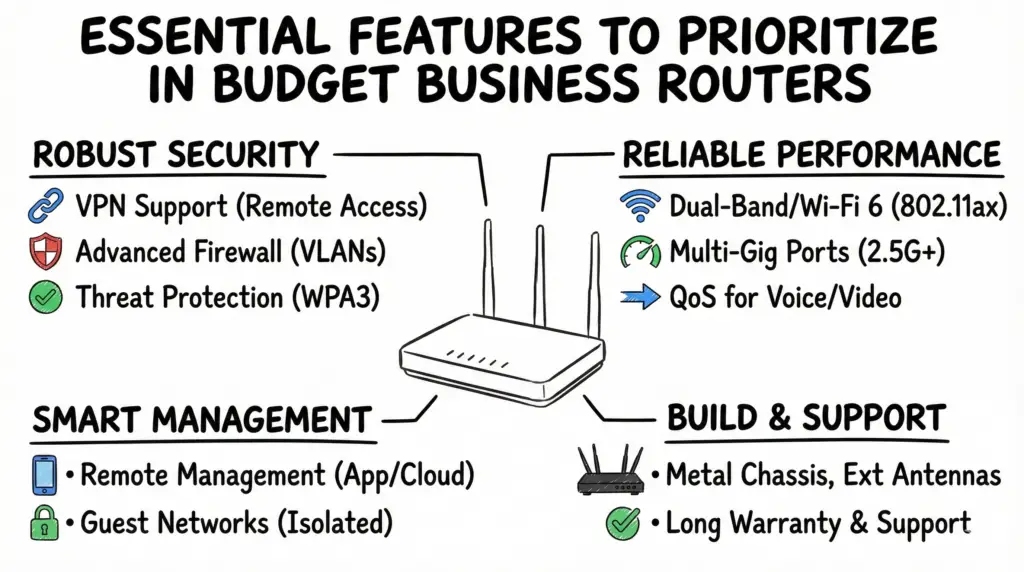
Once the difference between home and business routers is clear, the next step is knowing which features matter most when money is limited. Spending under two hundred dollars means choosing carefully, not just chasing the highest marketing speed.
The first thing I look at is the Wi‑Fi standard. Comparative studies like Wi-Fi vs. Duty Cycled LTE research demonstrate how different wireless technologies perform under various load conditions, which informs router selection for business environments. For any new purchase, I strongly prefer Wi‑Fi 6 (802.11ax). It handles crowded networks better than Wi‑Fi 5 because it can talk to many devices at once instead of one at a time. Some budget models even offer Wi‑Fi 6E or Wi‑Fi 7, which add extra radio bands and better efficiency, but Wi‑Fi 6 is already a solid base for most small offices.
Band count comes next:
- Dual‑band routers use 2.4 and 5 GHz. This works well for many small spaces with up to fifteen or so active users.
- Tri‑band routers add another high‑speed band, which helps when many devices are streaming or in calls. For a busy office or shared workspace, that extra band can keep things smooth during heavy use.
Security features should never be the place to cut corners. At minimum, I want:
- WPA3 support
- A decent firewall
- Automatic firmware updates turned on
Many of the routers in this guide include extra threat protection from partners such as Trend Micro or similar vendors, which adds another layer without extra hardware.
Ports and physical connectivity are often overlooked. A good budget business router should have:
- At least four gigabit LAN ports so desktops, printers, and network storage can use wired connections
- A multi‑gig WAN port if there is fiber or a very fast cable line, to avoid bottlenecks now or during a future speed upgrade
Management is also important, especially when I help non‑technical owners. Some routers offer a clean mobile app that makes basic tasks simple, while still keeping advanced options in a web interface. For multi‑site setups, cloud‑based management makes life easier because the entire network can be watched from one dashboard.
Guest networks and basic Quality of Service (QoS) also matter. A good guest network keeps visitors or customers away from internal devices. QoS lets the router give priority to calls and meetings so a large file copy does not ruin the weekly team review.
Coverage is the last big factor. A typical small office is in the range of fifteen hundred to three thousand square feet. Router spec sheets usually list an approximate coverage area. For normal walls and layout, I treat those numbers as a rough guide and leave some margin. If the router can also join a mesh later, there is a clear upgrade path when the office space grows.
Here is a simple feature priority matrix that I often use as a quick guide.
| Feature | Very Small Office 1–5 People | Small Office 6–15 People | Growing Office 16–25 People |
|---|---|---|---|
| Wi‑Fi 6 | Essential | Essential | Essential |
| Tri‑band | Nice | Important | Essential |
| WPA3 and firewall | Essential | Essential | Essential |
| VPN support | Important | Important | Essential |
| At least 4 LAN ports | Essential | Essential | Essential |
| Multi‑gig WAN | Nice | Important | Important |
| Mesh expandability | Nice | Important | Essential |
| Cloud management | Nice | Nice | Important |
With this list in mind, the choices in the next section will make a lot more sense.
How To Determine The Right Router Specifications For Your Business

Before picking a router, it helps to measure what the network actually needs. Guessing often leads to buying either too little power or paying for features that never get used.
- Measure the office footprint.
Note the square footage and the layout. An open space of fifteen hundred square feet is easy for one strong router. A similar size broken into many rooms, or spread across two floors, is tougher and may need mesh support later. - Count every device.
Include laptops, desktops, phones, tablets, printers, point of sale systems, smart TVs, cameras, and other smart devices. Once that number is clear, add around thirty percent as a buffer for growth and visitors. That final number is what the router truly has to handle. - Check the internet plan.
- If the business has a one hundred internet speed and no near‑term plan to upgrade, any Wi‑Fi 6 router in this list will be more than enough.
- If gigabit fiber is installed or coming soon, lean toward models with higher combined speeds and, if possible, a multi‑gig WAN port.
- List critical applications.
A team of five that mostly emails and uses web apps has different needs than twelve people who spend the day in video calls and syncing large design files. Write down heavy applications such as video meetings, cloud backup, and VoIP calls, because these are the ones that need bandwidth priority. - Account for remote workers.
If several employees connect in from home to reach internal systems, then built‑in VPN server features move from nice to essential. - Note physical obstacles.
Thick concrete walls, glass partitions, and neighboring Wi‑Fi can also shape which models make sense and whether mesh will be needed.
A simple way to wrap this up is to write down the answers to these questions:
- How big is the space?
- How many devices exist today (plus growth buffer)?
- What is the current and planned internet speed?
- Which activities must never lag?
- How many remote workers need secure access?
With those answers ready, matching them to a router becomes far easier and far less random.
The 7 Best Budget Routers For Small Business Networks (Under $200)
Now that the key concepts are clear, it is time to look at specific hardware. Every router in this section is a model I would be comfortable using in a small office, and every one is usually available under two hundred dollars from major US retailers. Prices move over time, so it is always wise to check the latest listing before buying.
Each pick highlights a different type of small business need, from lean startups to growing teams that require VPN and better management. The idea is not just to show seven options but to match them to real‑world scenarios I see often in my consulting work.
#1. [Recommended Router – Afroz Ahmad’s Top Pick]
My top pick is the TP‑Link Archer AX55 Pro, an AX3000 Wi‑Fi 6 router that offers a rare mix of speed, stability, and advanced features at a very friendly price. It is usually well under two hundred dollars yet feels like gear from a higher tier. For most small offices of up to fifteen people, this is the sweet spot.
The Archer AX55 Pro supports Wi‑Fi 6 with combined speeds around three gigabits per second and uses dual bands to handle many active devices. It adds a 2.5 gigabit WAN port for fast fiber links, four gigabit LAN ports, and TP‑Link HomeShield for network and IoT protection. VPN server support and useful QoS controls are built in, and management through the Tether app is simple for non‑technical owners.
Strengths
- Multi‑device performance stays smooth even when many people are in meetings and moving files at the same time. The Wi‑Fi 6 radio and solid processor handle these mixed loads very well in my experience.
- Security features such as WPA3, firewall rules, and HomeShield protection give a strong base without extra monthly tools. This keeps small offices safer with minimal effort.
- The 2.5 gigabit WAN port means the router will not be a bottleneck when a faster internet plan is added. This helps protect the investment for several years.
- Coverage is strong for most small offices, roughly up to twenty‑five hundred square feet in my testing, and OneMesh support allows simple range expansion later.
Limitations
- HomeShield has advanced features behind a subscription, which some owners may not want to pay for. Basic protection is still free, but it is worth noting.
- VLAN support is limited compared to more business‑focused platforms, so complex segmentation is better handled with a separate managed switch.
My expert take is simple: when I want one router that will serve the widest range of small offices under two hundred dollars, I reach for the Archer AX55 Pro. It balances performance, security, and price better than almost anything else in this bracket.
#2. [Second Best Option]
The TP‑Link Archer AXE75 is my pick for small businesses that want Wi‑Fi 6E and extra headroom for heavy wireless use while still staying below two hundred dollars during frequent sales. It is a tri‑band router with one 2.4 GHz band, one 5 GHz band, and a clean 6 GHz band for newer devices.
This model shines in busy wireless environments where many networks fight for the same channels. By moving key devices such as conference room machines or main design workstations to the 6 GHz band, performance stays smoother. It also supports TP‑Link OneMesh, WPA3, HomeShield features, and offers enough Ethernet ports for a normal office layout.
Strengths
- The 6 GHz band is far less crowded, which reduces interference and keeps critical wireless links very responsive. This is noticeable during high‑quality video calls.
- Tri‑band design helps spread clients across more air time, which keeps overall latency lower when many users are active. This is a real benefit in co‑working spaces.
- Setup through the Tether app is quick, so owners can use advanced wireless features without complex command‑line steps.
Limitations
- No multi‑gig LAN port is present, so very fast local file servers still top out at gigabit on wired connections.
- Peak price sometimes rises slightly over two hundred dollars outside sale periods, so timing the purchase can matter for strict budgets.
For offices in crowded apartment buildings or city centers, the Archer AXE75 offers a clear upgrade path thanks to Wi‑Fi 6E while still feeling like a budget‑friendly business router.
#3. [Third Best Option]
The Synology WRX560 is a powerful Wi‑Fi 6 router that I recommend when management and software features matter as much as radio specs. It is often close to the two hundred dollar mark and sometimes dips below it during promotions, which makes it a strong value for offices that need clearer visibility into their computer network.
This router supports AX3000‑class Wi‑Fi 6, includes a multi‑gig port that can be used for WAN or LAN, and runs Synology Router Manager (SRM) software. That platform gives excellent control over user profiles, web filtering, VPN, and traffic reports without extra licensing fees. The WRX560 is also mesh ready, so it can pair with other Synology routers to extend coverage in a controlled way.
Strengths
- The management interface is one of the cleanest and most capable in this price range, which is ideal for owners who want to understand how the network is used.
- Built‑in security and web filtering features are generous and do not require ongoing subscriptions, which keeps long‑term costs low.
- Mesh support lets the office start with one router and then add more nodes as space or staff grows, all under a single management view.
Limitations
- Physical size is a bit larger than many consumer routers, which may limit placement on cramped shelves.
- Fewer third‑party guides exist compared to brands like TP‑Link or ASUS, so some advanced options may take a little learning.
When clients want deeper insight into their traffic and strong access controls for staff or guest usage, the Synology WRX560 has been a very reliable option in my projects.
#4. [Fourth Best Option]
The NETGEAR Nighthawk AX5400, often sold as the RAX50, is a fast dual‑band Wi‑Fi 6 router that suits small offices needing wide coverage and strong throughput. It usually sits below two hundred dollars and is aimed at performance‑focused users, which lines up well with creative teams and power users.
With combined wireless speeds around five point four gigabits per second and a capable multi‑core processor, this router handles many simultaneous connections without feeling sluggish. Four gigabit LAN ports support wired desktops and storage, while NETGEAR Armor adds an extra layer of online threat protection. The Nighthawk app makes initial setup and simple changes fairly easy.
Strengths
- Throughput performance is excellent across short and medium distances, which helps when many staff are streaming, uploading, and conferencing at once.
- NETGEAR Armor provides strong network‑wide protection, blocking unsafe sites and known threats before they reach end devices.
- Antenna design gives solid coverage in larger single‑floor spaces, which can reduce the need for extra access points in offices around two thousand square feet.
Limitations
- Some advanced security features are tied to an Armor subscription after the trial period ends, which adds a possible recurring cost.
- The interface exposes fewer fine‑tuning options than some other brands, which power users may notice.
For teams that value speed and wide coverage and are comfortable paying attention to NETGEAR’s security subscription model, the RAX50 is a strong contender.
#5. [Fifth Best Option]
The ASUS RT‑AX58U, also known as AX3000, is a Wi‑Fi 6 router that feels very balanced for small business use. It sits comfortably under two hundred dollars and brings several business‑friendly features along with ASUS’s well‑regarded security package.
This router offers AX3000 dual‑band Wi‑Fi, four gigabit LAN ports, and a USB port for simple storage sharing. It includes AiProtection Pro powered by a major security vendor, with lifetime updates at no extra charge, plus full VPN server support. It can also join an AiMesh system, which lets you build a more advanced multi‑node network later using other ASUS routers.
Strengths
- Lifetime AiProtection Pro gives ongoing security updates and blocking without a subscription, which I find very attractive for small offices.
- AiMesh support means this router can become part of a larger, more flexible mesh as the space grows, avoiding a full replacement.
- The web interface and app strike a good balance between simplicity and depth, making it friendly for both beginners and power users.
Limitations
- There is no multi‑gig WAN or LAN port, so extremely fast fiber links and high‑speed servers are limited to gigabit.
- Some advanced settings are labeled with gaming language, which can be slightly confusing in a pure business context.
When I want a secure, expandable router that will not lock a business into subscriptions, the RT‑AX58U is often high on my list.
#6. [Sixth Best Option]
The TP‑Link Omada ER7206 is a bit different from the other picks because it is a wired VPN router with no built‑in Wi‑Fi. I recommend it for small businesses that already plan to use separate access points or that need more advanced routing and VPN features while still staying under two hundred dollars.
This unit offers multiple gigabit ports, including one SFP port for fiber, and is designed to work as part of the Omada SDN family. Through the Omada controller, you can manage routers, switches, and access points from one console, set up VLANs, monitor traffic, and build site‑to‑site or remote‑access VPNs.
Strengths
- VPN and firewall features are richer than on typical all‑in‑one routers, which is helpful when secure remote access is central to the business.
- Centralized management through Omada makes multi‑site setups and guest network isolation much easier to maintain over time.
- The hardware is built for constant use and can handle a high number of clients when paired with suitable access points.
Limitations
- Because it lacks built‑in Wi‑Fi, it is not a one‑box answer and requires separate access points, which adds planning.
- The interface leans toward professional users, so there is a steeper learning curve for those new to networking.
For small hotels, clinics, or multi‑branch offices where control and VPN matter more than simplicity, the ER7206 delivers enterprise‑style features at a budget router price.
#7. [Seventh Best Option]
The NETGEAR 4‑Stream Wi‑Fi 6 Router R6700AX is my value pick for tiny offices and serious home offices that want a simple move into Wi‑Fi 6 on a tight budget. It usually costs well under one hundred dollars yet offers enough performance for around ten to fifteen active devices.
It supports AX1800 dual‑band Wi‑Fi, covers roughly fifteen hundred square feet, and includes four gigabit LAN ports. The Nighthawk app makes setup straightforward, and basic QoS and security settings are present. While it lacks some of the advanced extras in higher picks, it is a big improvement over older Wi‑Fi 5 home routers often used in starter offices.
Strengths
- Very friendly price while still giving the benefits of Wi‑Fi 6, such as better handling of multiple devices at once.
- Small size and simple app‑based setup make it easy to drop into a home office or tiny startup space without fuss.
- Power draw and heat output are low, which can matter in cramped or shared equipment corners.
Limitations
- Fewer advanced business features such as VPN and VLANs compared to higher‑ranked routers in this list.
- Coverage and throughput are modest, so it best fits small spaces and light to medium workloads rather than growing teams.
For solo consultants and very small teams ready to stop fighting with an old modem router combo, the R6700AX is a big step up without touching the top of the budget.
Standalone Router Vs Mesh System: Which Is Right For Your Business
A common question I hear is whether to buy one strong router or move straight to a mesh system. Both approaches can work very well for small businesses, but each fits a different type of space and growth plan.
A standalone router is usually the best choice for small, open offices under roughly two thousand square feet. These spaces often have clear sight lines, thin walls, and staff clustered around a central area. A single good Wi‑Fi 6 router can cover this layout while also providing more Ethernet ports and deeper settings than many mesh nodes.
Mesh systems shine in larger or more complex spaces. If the office has several rooms, thick walls, or spreads across multiple floors, Wi‑Fi from a single point tends to leave dead spots. A mesh system uses several nodes placed around the space so that devices can always connect to a nearby unit while still staying on one seamless network name.
From a performance view, a true mesh system is usually better than a main router plus simple range extenders. Mesh nodes coordinate and share client and roaming information, while range extenders often cut speed in half and create separate network names. This is why I prefer mesh for tougher layouts.
Cost is another factor. A strong standalone router is almost always cheaper upfront. Mesh kits cost more at the beginning but can save time and frustration if coverage issues would have forced many tweaks and add‑ons later. Some routers in this guide, such as the Archer AX55 Pro, Archer AXE75, WRX560, and RT‑AX58U, support mesh with matching units. This lets you start single and add nodes later.
Here is a quick comparison to help decide.
| Option | Best Fit | Main Benefits |
|---|---|---|
| Standalone router | Small open offices under about 2k square feet | Lower cost, more ports, more tuning options |
| Mesh system | Larger or multi‑floor spaces above about 3k feet | Seamless coverage, fewer dead zones, easy scaling |
A simple walk around the office with a Wi‑Fi analyzer app can show quite fast whether a single router is enough. If signal drops sharply in key rooms, planning for mesh from the start is the smarter move.
Installation And Setup Best Practices For Small Business Routers
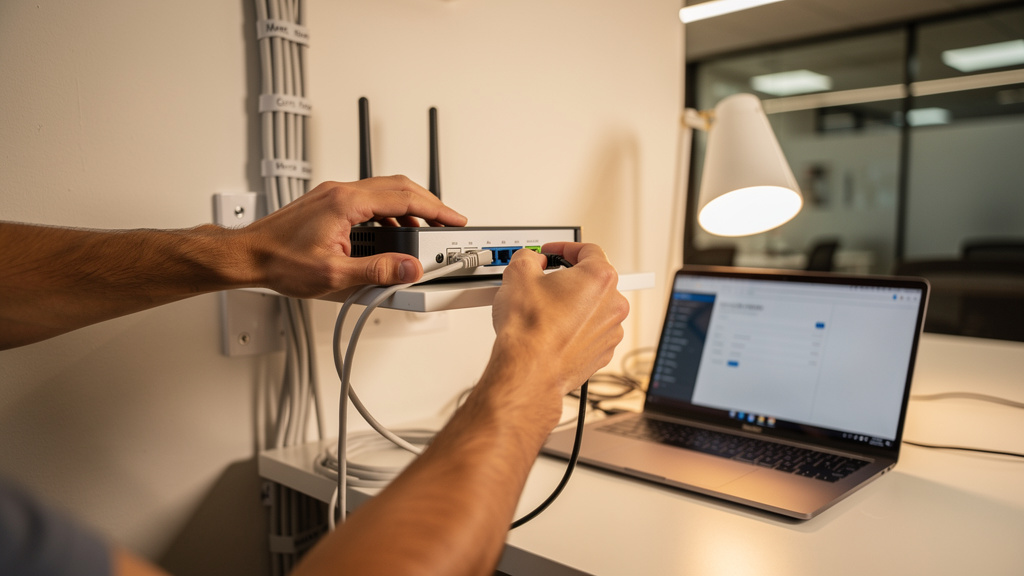
Buying a good router is only half the story. The way it is installed and configured often matters just as much for speed and security. I have seen many strong routers perform badly simply because they were in the wrong spot or left on default settings.
Follow these best practices:
- Document the current setup.
Before unplugging anything, note how the current network is wired. Write down which cable goes from the modem to the router, and which cables run to switches, desktops, or phones. Keep ISP account details handy as well, including any PPPoE usernames or special options. - Choose a good location.
Put the new router in a central, open spot if possible, not hidden behind a metal cabinet or under a desk. Keeping it off the floor and away from big metal objects or thick concrete helps the signal stay clean. Leave some space around it for air flow so it can run cool during long work days. - Secure the admin access.
Once powered on, change the default admin password right away to something long and private. Then check for firmware updates and apply them before adding lots of devices. - Set Wi‑Fi and guest networks.
- Choose WPA3 if all main devices support it, or a mixed WPA2/WPA3 mode when older hardware is present.
- Set a strong passphrase that is not reused from other sites.
- Create a guest network for visitors and clients, and make sure that guest traffic is isolated from internal devices.
- Tune QoS and priorities.
In the QoS settings or traffic priority section, set rules so video calls, VoIP phones, and key cloud apps get higher priority than large downloads or updates. - Test from multiple spots.
After everything is in place, test from several corners of the office. Run speed tests on wired and wireless devices, start a couple of video calls, and try printing and file access at the same time. If anything feels weak, tweak placement or antenna direction and retest. - Record your settings.
Finally, record the main settings, passwords, and any special tweaks in a simple document so that future changes or troubleshooting are far less painful.
“Trust, but verify” applies to networks too — always test instead of assuming everything is fine.
Common Mistakes To Avoid When Choosing A Small Business Router
Over the years, I have seen the same buying mistakes repeat, often costing small businesses both time and money. Knowing these traps ahead of time makes it much easier to avoid them.
- Buying only on price. The cheapest router on the shelf usually cuts corners on processor, memory, and security features, which leads to slowdowns and outages. Over a year or two, the cost of lost time and quick replacements is far higher than paying a bit more upfront.
- Ignoring the Wi‑Fi generation. Older Wi‑Fi 5 routers may look like bargains, yet they handle crowded device loads poorly compared to Wi‑Fi 6 models. For new purchases, I nearly always suggest at least Wi‑Fi 6 so the network feels stable as more devices appear.
- Miscounting devices. Many people count laptops and phones but skip printers, cameras, smart TVs, and guest devices. When all those join, the router feels overloaded, and staff blame the ISP instead of the real cause.
- Relying on ISP combo units. Those all‑in‑one modem routers from providers are designed to be cheap and simple, not strong and secure. Renting them month after month also adds up in cost, often more than buying a solid business‑ready router within a year or two.
- Ignoring growth. Buying exactly what fits this month without any buffer means another replacement is needed as soon as a few more people join or a faster internet plan is added. Planning even six to twelve months ahead avoids this cycle.
When To Consider Upgrading Beyond Budget Routers
Budget routers can serve small businesses very well, especially with the models in this guide. There comes a point, though, when the network simply needs more power and features than this tier can offer. Recognizing that point early makes upgrades smoother and less stressful.
Signs that it is time to move up include:
- Constant performance trouble with more than twenty or so active users, even after good configuration
- Calls dropping, file transfers crawling, and monitoring showing the router’s CPU running near one hundred percent
- A need for many VLANs, complex VPN designs, or advanced firewall rules that stretch what budget firmware was built to handle
- New security or compliance requirements that demand deeper inspection, more detailed logging, or stricter separation between networks
- Internet speeds moving into multi‑gigabit territory or local storage running over 2.5 or 10 gigabit links, while the router still tops out at one gigabit
A middle ground that I often recommend is a hybrid approach. Keep a strong budget router at the edge, then add managed switches, dedicated access points, or a separate firewall over time. This spreads cost while still raising capability. For many businesses with fewer than twenty‑five employees, the routers in this article remain more than enough when paired with thoughtful network design.
Conclusion
A reliable small business network does not require huge spending or complex enterprise gear. With careful choices, spending around one hundred fifty to two hundred dollars on a router can deliver stable Wi‑Fi 6 performance, strong security, and enough capacity for a growing team. The key is matching real needs to the right hardware instead of chasing flashy marketing numbers.
The most important features to keep in mind are modern Wi‑Fi, good security with WPA3 and a firewall, sensible QoS, enough Ethernet ports, and a path for growth through mesh or add‑on gear. The best budget router for small business is the one that fits the office size, device count, and daily applications, not just the highest speed printed on the box.
Use the assessment questions earlier to map out requirements, then compare that list against the seven routers I shared. With solid installation and router configuration, these models can support years of productive work. My goal, as always on AfrozAhmad dot com, is to help people make practical networking choices that keep their business running smoothly and safely.
FAQs
Can I Use A Consumer Or Home Router For My Small Business?
It is technically possible to run a small business on a home router, but I strongly advise against it for anything beyond a solo user. Home routers are built for light, mixed use and often slow down or crash when many devices are active. They also lack strong firewalls, VPN support, and proper traffic control. For a single person in a home office, a good Wi‑Fi 6 home types of routers may be acceptable, but once customer data and multiple staff are involved, a business‑ready router is the safer choice.
Do Budget Business Routers Support VPN For Remote Workers?
Yes, many business‑focused routers in the one hundred fifty to two hundred dollar range include VPN server features. They often support protocols such as OpenVPN or L2TP so remote staff can securely connect back to the office network. This is different from a VPN client feature that sends all traffic through a commercial privacy service. Performance over VPN is usually lower than raw internet speed, often by twenty to forty percent, so it is wise to choose a router with a decent processor. In this guide, models from ASUS, Synology, and TP‑Link handle VPN duties well for small teams.
How Many Devices Can Budget Small Business Routers Handle?
Quality budget routers can usually handle around twenty to forty connected devices without trouble, as long as not all of them are pushing heavy traffic at once. There is a difference between devices that are simply connected and those actively streaming, calling, or transferring large files. Wi‑Fi 6 models handle crowded device lists far better than older Wi‑Fi 5 units. When the router is overloaded, symptoms include slow page loads, calls breaking up, and devices randomly failing to join the network.
What Is The Difference Between Throughput Speed And Real‑World Performance?
Advertised throughput and bandwidth such as AX3000 or AX5400 are combined theoretical maximums measured under perfect lab conditions. In real offices, walls, distance, interference, and client hardware cut that speed significantly, often to around half or less. Dual‑band numbers also add both bands together, even though each device uses just one band at a time. Processor power, memory size, and how well the firmware handles many clients matter just as much as radio specs. When I recommend routers, I focus on how they behave under load in real spaces, not just the numbers on the box.
Should I Buy From My Internet Service Provider Or Choose My Own Router?
For business use, I almost always recommend buying and managing your own router rather than relying on the one from the ISP. Provider‑supplied units are typically low‑end and offer router buying mistakes security and configuration options. They also come with rental fees that add up quickly, often reaching the price of a good router within a year. Most third‑party routers work fine with major US ISPs, though you should confirm compatibility with your exact service type. In some fiber setups, you still use the ISP’s optical terminal but place your own router behind it.
How Often Should Small Businesses Upgrade Their Routers?
A good rule of thumb is to refresh the main router every three to five years. During that time, Wi‑Fi standards improve, new security threats appear, and device counts usually grow. Signs that it is time to upgrade include frequent slowdowns, lack of support for newer security modes, or the vendor ending firmware updates. Upgrading on a planned schedule, rather than waiting for a failure, allows testing and migration without panic. Investing in Wi‑Fi 6 gear now extends useful life, since it will handle new devices and faster internet plans for years to come.

- pfSense 10G Home Lab Setup: Complete Hardware Guide (2026) - April 1, 2026
- Best Budget Home Lab Setup Under $300 (2026): Complete Starter Stack - March 30, 2026
- Best Modems for Spectrum: Top DOCSIS 3.1 Picks That Actually Work - March 28, 2026