
According to recent cybersecurity reports, around 68 percent of organizations saw at least one VPN‑related security incident in the last year, and misconfiguration was the main cause, as highlighted in studies like Critical Confusion: Why Most IT professionals misunderstand security configurations. When a site‑to‑site VPN tunnel is set up badly, it can expose internal networks or simply fail at the worst possible moment. Learning how to configure a secure site-to-site VPN on Cisco Firepower is not just a checkbox; it is a core skill for anyone who cares about stable, safe connectivity.
Site‑to‑site VPNs are still the backbone for connecting branches, data centers, cloud edges, and small offices, even though more traffic now goes to SaaS and public cloud. Cisco Firepower Threat Defense (FTD) brings next‑generation firewall features and central management through Firepower Management Center (FMC), which is quite different from the older Cisco ASA command‑line style. That change in workflow is a common source of mistakes, especially when moving existing tunnels from ASA to Firepower.
In this guide I walk through both policy-based and route-based Virtual Tunnel Interface (VTI) VPNs step by step, with the exact screens and settings you need in FMC. I also share real‑world troubleshooting methods and Cisco Firepower VPN best practices that I use in the field. A basic understanding of IP routing, IPsec, and access control rules is helpful, and you should have access to at least one FTD managed by FMC. By the end, you will be ready to configure, verify, and fix production‑grade VPNs on Cisco Firepower with confidence.
“Complexity is the enemy of security.” — Bruce Schneier, security technologist
Keeping your VPN design simple and consistent makes it far easier to secure and operate.
Key Takeaways
- You will see the clear differences between policy-based crypto map VPNs and route-based VTI VPNs, so you can pick the right design instead of guessing. I explain how each method selects traffic, how the encryption domain works, and where each one fits best. This saves time when planning or migrating networks.
- The guide walks through the full Cisco Firepower VPN configuration flow in FMC, from building the topology to selecting IKE and IPsec settings and deploying changes. Step‑by‑step instructions match what is on the screen, which helps both new engineers and experienced ASA users moving to FTD. That lowers the chance of small mistakes that break the tunnel.
- Strong security practices are baked into every section, including cipher choices, NAT exemption rules, and Access Control Policy (ACP) design for VPN traffic. I point out weak and deprecated options so you do not get blocked during upgrades or leave gaps in protection. This keeps tunnels both safe and easier to maintain.
- I show how to verify tunnel health using FMC and FTD CLI commands, and how to read packet counters and packet tracer output. With this method, it becomes much easier to find out if the problem is phase one, phase two, routing, access control, or NAT. That structured approach saves hours during outages.
- Common site‑to‑site VPN issues are broken into clear categories with focused fixes, based on my seventeen plus years of CCIE‑level work. Along the way I highlight how my content on the Afroz Ahmad platform helps both professionals and learners move from theory to clean, working configurations without guesswork.
Understanding Cisco Firepower VPN Architecture and Prerequisites

Before touching any buttons in FMC, it helps to understand what Cisco Firepower Threat Defense (FTD) is and how it differs from a classic Cisco ASA. With ASA, most engineers use the CLI for VPNs, building crypto maps, policies, and objects directly on the firewall. With FTD, almost all site‑to‑site VPN work is done in Firepower Management Center (FMC) through a graphical workflow, and then pushed to the device. You still have a CLI on FTD, but it is mainly for checks and some low‑level tasks.
For the scenarios in this guide I use Firepower Threat Defense versions around 6.5–6.7 with Firepower Management Center 6.7, and a Cisco ASA running software in the 9.10 range as the remote peer. The steps are similar for newer Cisco Secure Firewall releases, but some screens may look slightly different. You do not need a special VPN license for site‑to‑site tunnels; they work in both licensed and evaluation modes. However, if the device does not have an export‑controlled crypto license, it may be limited to weaker ciphers, which is not recommended for real networks.
All examples assume a lab‑style setup with default configs, which is how I encourage readers of my Afroz Ahmad blog to practice first. On a production firewall, every change to VPN, NAT, or access control can affect real traffic paths, so it is important to think about impact before deploying. Have out‑of‑band access ready and a rollback plan if things do not go as planned.
This guide focuses on IKEv2, which is the modern standard on Cisco FTD. IKEv2 is more secure and efficient than IKEv1 and is fully supported on current Cisco devices. In the following sections I explain how this fits into policy‑based and route‑based VPN modes, and how that choice affects the rest of your design.
Policy-Based vs Route-Based VPNs Choosing the Right Architecture
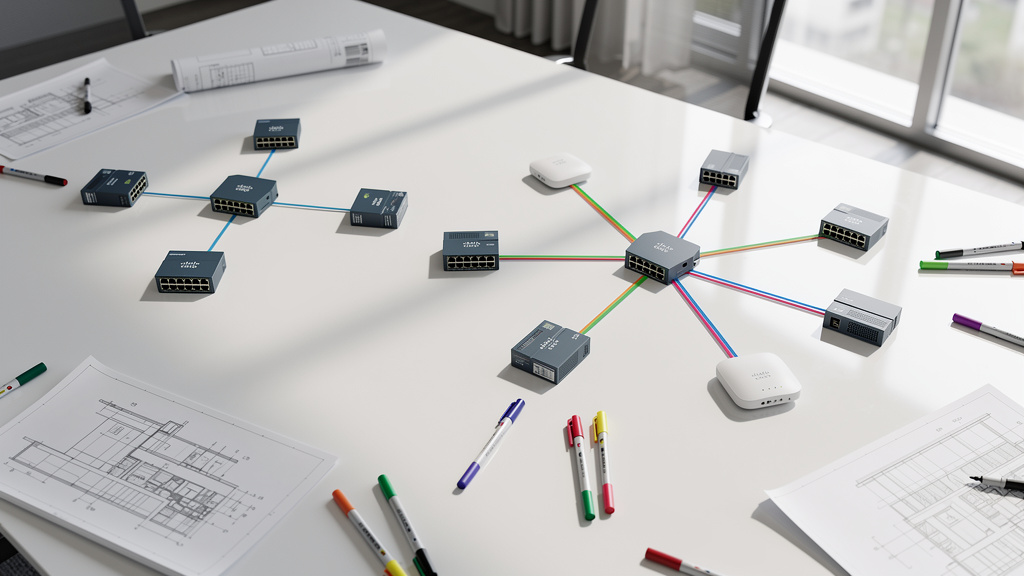
When preparing a Cisco Firepower VPN configuration, the first design decision is whether to use policy-based or route-based VPN. This choice decides how the firewall picks traffic to encrypt and how easy the setup is to grow later. Getting this wrong early often leads to painful redesigns when more sites or networks are added.
Policy-based VPNs are the traditional method and mirror the old ASA crypto map approach. In FMC you define protected networks for each side, which act like an access list for interesting traffic. When a packet enters the firewall, FTD checks if its source and destination match those objects. If they match, the packet is encrypted and sent through the IPsec tunnel. If not, it is handled by normal routing and NAT. This method works well for one or two subnets per side that do not change much.
Route-based VPNs use Virtual Tunnel Interfaces (VTIs) instead. Here you create a logical interface on FTD with its own IP, attach the IPsec profile to that VTI, and then use routing to send traffic into the tunnel. The encryption domain is usually set as any‑to‑any, so whatever the route points to that VTI gets encrypted. This makes it much easier to handle many subnets, hub‑and‑spoke designs, or even dynamic routing with BGP.
There are some limits with VTI on FTD that matter for design:
- Only IPv4 is supported
- Only pure IPsec is supported (no GRE over IPsec)
- Dynamic routing over VTI is limited to BGP
- Up to 100 VTIs per device are supported
- VTIs are not supported in FTD cluster modes
- Some policies (such as QoS and certain platform settings) do not apply directly to the VTI interface
A quick comparison helps clarify when to use which model:
| Feature | Policy-Based VPN | Route-Based VPN (VTI) |
|---|---|---|
| Traffic Selection | Protected networks (crypto ACL style) | Routing via VTI interface |
| Encryption Domain | Explicit local/remote networks | Usually any‑to‑any, controlled by routes |
| Best For | Small, static topologies | Multi‑site, hub‑and‑spoke, future growth |
| Dynamic Routing | Not over IPsec directly | BGP supported over VTI |
| Migration From ASA | Mirrors classic crypto map | Better for greenfield or redesigns |
As a simple rule, I advise readers to pick route-based VTI tunnels for new designs, complex topologies, and anything that may later carry BGP. Policy‑based VPNs still make sense when working with older peers that do not support VTI, or when moving a very small and static design from ASA where a crypto map style layout is already defined.
Configuring a Policy-Based Site-to-Site VPN on Cisco Firepower
A policy-based VPN on Cisco Firepower follows a clear path in FMC, with detailed configuration steps available in the Cisco Secure Firewall Device manager guide. You define the topology and protected networks, set IKE phase one and IPsec phase two settings, add NAT exemption, and make sure access control rules allow the traffic. Once you deploy, the FTD builds a crypto‑map style tunnel on the chosen interface. In this section I show the full sequence so you can perform a reliable site-to-site VPN setup that matches a remote ASA or other peer.
Step 1 – Defining the VPN Topology and Protected Networks
- In Firepower Management Center, go to
Devices→VPN→Site To Site. - Click Add VPN, choose Firepower Threat Defense Device, and give the topology a clear name so you can spot it later among many tunnels.
- Set the Network Topology to Point to Point and pick IKEv2 as the IKE version to align with current best practice.
For Node A, choose your FTD device and select the outside or other internet‑facing interface as the endpoint. FMC fills in the public IP of that interface. Under Protected Networks, add or select network objects for your local subnets that should use the tunnel, for example a 10.10.113.0/24 subnet.
For Node B, choose Extranet as the device type, enter a label such as ASA_Headend, and set the remote public IP address. Under its Protected Networks add network objects for the remote subnets, for example 10.10.110.0/24. These objects define the effective crypto access list, so they must mirror the other side, meaning what is source on FTD must be destination on ASA and the other way around. Care at this step avoids long nights of confusing phase two errors.
Step 2 – Configuring IKE Phase 1 Parameters
Next move to the IKE tab inside the VPN topology:
- Add a new IKEv2 policy and give it a simple priority value such as 1, since lower numbers are tried first.
- Choose strong settings that match your security policy, for example:
- Encryption: AES‑256
- Integrity and PRF: SHA‑256 or SHA‑512
- Diffie‑Hellman group: at least group 14 (higher groups if hardware permits)
- Lifetime: around 86,400 seconds (24 hours)
For authentication, pick Pre‑shared Manual Key, which is still the most common method for site‑to‑site tunnels. Enter a long and random key, with letters, numbers, and symbols, and store it in a secure password vault instead of text files. Every phase one field must match exactly between FTD and the peer. During negotiation FTD sends all configured IKE policies, and the other side picks the first that matches, so clear planning of these values is better than trial and error.
Step 3 – Configuring IPsec Phase 2 Parameters
Now click on the IPsec tab to build the phase two settings that protect the actual data. Edit the IKEv2 IPsec Proposal and add a new proposal entry.
- For modern networks I recommend AES‑GCM‑256 as the ESP encryption method, which provides both encryption and integrity in one cipher. In that case, you do not need a separate ESP hash field.
- If you must align with a peer that does not support GCM, choose AES‑256 for encryption with SHA‑256 or SHA‑512 as the hash.
- Add your proposal to the list of selected IPsec proposals and save.
- You can enable Perfect Forward Secrecy (PFS) with a matching Diffie‑Hellman group to give extra protection for long‑lived tunnels.
- Phase two lifetime can stay near 28,800 seconds (8 hours) or be adjusted to align with your standards, but it must match the remote side.
Avoid old and weak options here. On FTD versions 6.7 and above, ciphers such as DES, 3DES, MD5, and low Diffie‑Hellman groups like 1, 2, and 24 are not supported for new configs and can even block system upgrades if still in use.
Step 4 – Creating NAT Exemption Rules
With phase one and phase two defined, you must stop NAT from translating VPN traffic.
- In FMC go to
Devices→NATand open the policy tied to your FTD. - Add a Manual NAT rule and move it toward the top so it matches before general internet PAT rules.
- On the Interface tab pick the inside interface as source and the outside as destination.
- On the Translation tab:
- Set the original source and translated source to the same local network object (for example, the 10.10.113.0/24 object).
- Do the same for the remote network on the destination side (for example, 10.10.110.0/24).
- On the Advanced tab tick No Proxy ARP and Route Lookup.
This tells FTD to leave those addresses untouched. Without this exemption, packets can get NATed to the public IP, and the remote peer then discards them because they do not match the IPsec selector.
Configuring a Route-Based VTI Site-to-Site VPN on Cisco Firepower
Route‑based VPNs built with VTIs give you more flexibility for multi‑subnet and dynamic designs, as outlined in the Cisco Secure Firewall Management Center configuration guide for site-to-site VPNs. The idea is simple: you create a logical tunnel interface, bind IPsec to it, and then use static or dynamic routing so that any packets for remote networks move into that VTI and get encrypted. In practice, the workflow in FMC is only slightly different from the policy‑based flow you saw earlier.
Step 1 – Creating the VPN Topology and Virtual Tunnel Interface
- In FMC go again to
Devices→VPN→Site To Siteand click Add VPN. - Select Firepower Threat Defense Device and give the topology a clear name such as VTI_to_DataCenter.
- For the VPN Type pick Route Based (VTI) and keep IKEv2 as the key exchange method.
On Node A, choose your FTD and click the plus sign next to Virtual Tunnel Interface:
- Define a VTI name and a tunnel ID number.
- Assign an IP address from a small point‑to‑point subnet, for example 192.168.100.1/30.
- Set the tunnel source to the outside physical interface that has the public IP.
- Assign the VTI to a security zone, maybe named VTI_Zone, which you will later reference in access control rules.
For Node B, choose Extranet and fill in a label and the remote public address. Unlike policy‑based VPNs, you do not define protected networks here. The encryption domain on a VTI tunnel is wide by default, and route entries decide which traffic reaches the tunnel. That makes VTI very handy when adding more remote networks later.
Step 2 – Configuring IKE and IPsec Parameters for VTI
The IKE and IPsec settings for a VTI tunnel are the same as what you saw for the policy‑based design:
- On the IKE tab pick or create a strong IKEv2 policy with AES‑256, SHA‑2 based integrity, and a modern Diffie‑Hellman group.
- Use a long pre‑shared key for authentication.
- On the IPsec tab use either AES‑GCM‑256 or AES‑256 with SHA‑256/SHA‑512.
- Add PFS if your standards require it.
For a detailed reminder, you can refer back to the earlier section on phase one and phase two settings, since the remote peer must still match every field.
Step 3 – Configuring Static Routes for VPN Traffic
Routing is what makes a route‑based VPN work. In FMC:
- Go to
Devices→Device Managementand edit the FTD device. - Open the Routing tab and choose Static Route.
- Click Add Route and select the VTI interface you created as the outgoing interface.
- Set the Network field to the object that represents the remote subnet, such as 10.10.110.0/24.
- For the Gateway, enter the IP address of the remote end of the VTI subnet, for example 192.168.100.2.
Any packet from the inside network that matches this destination will now be sent through the VTI and encrypted.
In more advanced designs, you can use BGP over the VTI instead of static routes. That allows automatic route exchange in hub‑and‑spoke or mesh topologies, but on FTD, BGP is the only dynamic protocol supported over VTI at this time.
Step 4 – Configuring Access Control Policy for VTI Traffic
Unlike policy‑based VPNs, VTI tunnels do not support the global sysopt permit‑vpn style bypass. That means you must build Access Control Policy rules that allow decrypted traffic into and out of the VTI.
- In FMC go to
Policies→Access Controland edit the policy on your FTD. - Add an Allow rule where:
- Source zone: InsideZone
- Destination zone: VTIZone
- Source/Destination networks: your local and remote VPN networks
- Add a second Allow rule with the zones reversed, so traffic from the tunnel back to the inside networks is also accepted.
- Place these rules above any broad deny entries.
Without these rules, the tunnel may show as up, but users will report that nothing passes.
Configuring the Remote Peer Cisco ASA Example
Every site‑to‑site VPN needs two sides. On one side in this guide sits a Cisco FTD managed by FMC. On the other side I use a Cisco ASA, since many readers of the Afroz Ahmad content are either migrating from ASA or running mixed environments. The key idea is simple: whatever you configured on FTD for phase one and phase two must match on ASA, and protected networks must be mirrored.
Below is a sample ASA config for a policy-based tunnel that matches the settings from earlier steps. You may adapt IPs, object names, and keys for your own lab or production site.
! Enable IKEv2 on the outside interface
crypto ikev2 enable outside

! Create the IKEv2 policy
crypto ikev2 policy 1
 encryption aes-256
 integrity sha256
 group 14
 prf sha256
 lifetime seconds 86400

! Group policy for the tunnel
group-policy FTD_GP internal
group-policy FTD_GP attributes
 vpn-tunnel-protocol ikev2

! Tunnel group with matching peer IP and key
tunnel-group 172.16.100.20 type ipsec-l2l
tunnel-group 172.16.100.20 general-attributes
 default-group-policy FTD_GP
tunnel-group 172.16.100.20 ipsec-attributes
 ikev2 local-authentication pre-shared-key cisco123
 ikev2 remote-authentication pre-shared-key cisco123

! Local and remote networks from ASA view
object network FTDSubnet
 subnet 10.10.113.0 255.255.255.0
object network ASASubnet
 subnet 10.10.110.0 255.255.255.0
access-list ASAtoFTD extended permit ip object ASASubnet object FTDSubnet

! IPsec proposal for phase two
crypto ipsec ikev2 ipsec-proposal FTD
 protocol esp encryption aes-gcm-256

! Crypto map tying it together
crypto map outside_map 10 match address ASAtoFTD
crypto map outside_map 10 set peer 172.16.100.20
crypto map outside_map 10 set ikev2 ipsec-proposal FTD
crypto map outside_map 10 interface outside

! NAT exemption for VPN traffic
nat (inside,outside) 1 source static ASASubnet ASASubnet destination static FTDSubnet FTDSubnet no-proxy-arp route-lookup
For a VTI-based design on ASA, you would create a tunnel interface with an IP address, bind the crypto profile to it, and use routing instead of a crypto map. With non‑Cisco peers such as Palo Alto or Fortinet, follow their vendor guides, but keep the same IKE and IPsec values as on FTD.
Verifying VPN Tunnel Status and Monitoring Connection Health
After completing the steps in this VPN tunnel configuration guide, you must confirm that the tunnel is actually working. Many engineers skip this and find out only during a change window that nothing passes. Verification gives confidence and a baseline for later troubleshooting and monitoring.
For VTI‑based VPNs you can stay in FMC and go to:
Devices → VPN → Site To Site → select your topology → Check Status
FMC runs common show commands on the FTD and displays output about IKE and IPsec sessions. You can see if the tunnel is up, when it came up, and basic packet counters, without touching the CLI.
On any FTD, policy‑based or route‑based, the CLI gives deeper insight. Common commands include:
show crypto ikev2 sa— shows phase one status; you want to see sessions in an UP-ACTIVE state with one IKE SA and at least one child SA.show crypto ipsec sa— reveals phase two details, including inbound and outbound SPIs and packet counts for encapsulated and decapsulated traffic.
When packets in both directions rise while users test, you know encryption and decryption are working.
Often, tunnels on FTD only form when interesting traffic appears. To force this and to test the data path, use packet‑tracer on the FTD. For example, run a trace from an inside host using ICMP to a remote host. The first run may show a drop while the device builds the tunnel. A second run should end with Action: ALLOW and a VPN encrypt stage marked as allowed.
“Trust, but verify.” — an old proverb often quoted in security circles
Make verification part of every change so you are not relying on assumptions.
In production, tie these checks into monitoring tools and alerting, so you get notified when a tunnel drops instead of finding out from end users.
Troubleshooting Common Site-to-Site VPN Issues on Cisco Firepower

Even with a clean Cisco VPN configuration tutorial, real networks still have surprises, which is why security professionals at organizations like Telefonica Tech · Blog emphasize the importance of systematic troubleshooting approaches. In my experience problems fall into two broad buckets:
- The tunnel does not form at all.
- The tunnel comes up but no traffic flows.
If you know which bucket you are dealing with, you can move through focused checks instead of jumping between random ideas.
Resolving Tunnel Establishment Failures Phase 1 Phase 2 Issues
When the VPN refuses to come up, start by assuming a mismatch or reachability problem.
Key checks:
- Compare IKE policies on both sides line by line:
- Encryption (AES‑256 vs AES‑128)
- Integrity (SHA‑256 vs SHA‑1, etc.)
- Diffie‑Hellman group
- PRF
- Lifetime
- Do the same for IPsec proposals:
- Encryption method (for example AES‑GCM‑256)
- Hash (if used)
- PFS settings
- Phase two lifetime
Many times I find that one side uses AES‑256 while the other still has AES‑128, or group 14 on one side and group 5 on the other.
Next steps:
- Confirm that the pre‑shared key is identical, including case and special characters. I prefer to paste it into both sides from a secure note to avoid typing errors.
- Test basic IP reachability between the peers with ping, where allowed.
- Make sure upstream devices are not blocking UDP/500 and UDP/4500, which carry IKE and NAT traversal.
- On FTD, use packet captures on the outside interface to see if IKE packets leave and come back. If you see packets leaving but nothing returning, the issue is somewhere in the middle, not on the firewall itself.
- Check that the crypto map or VTI is bound to the right interface and that IKEv2 is enabled on that interface.
Resolving Traffic Flow Issues Tunnel Up No Traffic
When show crypto commands say the tunnel is up and packet counters even increase a bit, but users cannot reach remote hosts, you are now in the data‑plane bucket.
Work through these areas:
- Routing
- Inside hosts must send traffic for remote networks toward the FTD (default route to the firewall or specific static routes).
- On the FTD, run
show routeand confirm that remote subnets are either reachable through the outside interface (policy‑based tunnels) or through the VTI (route‑based tunnels).
- Access Control Policy
- Open FMC and check connection events to see whether packets from the inside to remote subnets are being dropped.
- If you forgot to add an allow rule for VPN traffic, or if a more general deny rule sits above it, traffic may silently die there.
- Turn on logging at the start of rule evaluation for suspected rules to discover which entries are hit.
- NAT
- Confirm that a NAT exemption exists for the pair of networks you use in the VPN and that it appears above internet PAT rules.
- The source and destination objects in that rule must exactly match the networks defined as protected networks or used in VTI routing.
To see the full path for a test packet, run packet‑tracer from the CLI. The detailed output will show access control and NAT decisions step by step and quickly reveal if NAT is still being applied.
VPN Security Best Practices and Advanced Configuration Tips

Once you have a working Cisco Firepower VPN configuration, the next step is to keep it safe, fast, and manageable, especially given the documented Router Hacks and Attacks that target misconfigured network security devices. Over the years on the Afroz Ahmad platform and in enterprise projects, I have collected a set of habits that make life easier for both engineers and auditors.
“The more complicated the security system, the less secure it often becomes.”
This idea echoes through many security reviews I have done on large networks.
Some practical guidelines:
- Cryptographic Settings
- Use IKEv2 for almost every new deployment. It uses fewer message exchanges, has better resistance against certain attack types, and handles changing paths more gracefully.
- Prefer AES‑GCM when peers support it, since it provides encryption and integrity in a single cipher.
- Use at least Diffie‑Hellman group 14, with higher groups such as 19 or 21 when you need stronger protection and the hardware can handle the extra load.
- Avoid DES, 3DES, MD5, and very old Diffie‑Hellman groups. On FTD 6.7 and newer, those values can block upgrades until you replace them.
- Performance and Availability
- Make sure Dead Peer Detection (DPD) is enabled so stale tunnels clear quickly when a link fails.
- For high‑throughput sites, check that crypto hardware acceleration is being used and not falling back to software due to unusual cipher choices.
- Keep remote access VPN and site‑to‑site VPN logically separate, with clear rules about which traffic uses which service.
- Monitoring and Operations
- Tie tunnel status, packet counters, and failure logs into your network monitoring tools so that you see trends before users complain.
- Document each tunnel with a short sheet that lists peer IPs, local and remote networks, IKE and IPsec settings, and any special routing or NAT rules.
- Use change control for VPN edits so that other team members know when and why sensitive links changed.
These habits, combined with a solid grasp of FMC workflows, make site‑to‑site VPNs on Cisco Firepower far easier to support over the long term.
Conclusion
Configuring a secure site‑to‑site VPN on Cisco Firepower is not magic. It is a set of clear design choices and repeatable steps. You now know how policy‑based and route‑based VPNs differ, how IKE and IPsec settings fit together, and how NAT and access control policies interact with your tunnels. Both styles have a place, and the right choice depends on whether you are dealing with simple static links or growing multi‑site designs.
If you stick to strong algorithms, avoid weak ciphers, and test carefully with the verification methods covered here, you greatly reduce the chance of surprises during software upgrades or outages. Most hard problems I see in the field come from mismatched parameters, missing NAT exemption, or missing access control rules, all of which you can now spot quickly.
In my seventeen plus years working as a network engineer and sharing guides on Afroz Ahmad, clean and reliable VPNs remain one of the most important building blocks for secure connectivity. I suggest practicing these steps in a lab until they feel natural, then applying them in production with proper change control. Feel free to explore my other content on topics such as eight hundred two dot one X, SD‑WAN, and zero trust designs to round out your security skill set.
FAQs
What Is the Difference Between IKEv1 and IKEv2 and Which Should I Use
IKEv2 is a newer and stronger key exchange protocol compared to IKEv1. It uses fewer packets during setup, handles mobile and multi‑homed peers better, and has better protection against certain attack types. IKEv1 is considered legacy and has known design limits, so I avoid it in new designs. For Cisco Firepower, ASA, and modern routers, IKEv2 is fully supported and should be your default choice unless an old peer only supports IKEv1.
Can I Use the Same Pre-Shared Key for Multiple VPN Tunnels
You can reuse the same pre‑shared key across several tunnels, but from a security point of view this is a bad habit. If one site leaks the key, every tunnel that uses it is now at risk. I recommend a strong, different key for each tunnel, with at least twenty characters and a mix of letter types, numbers, and symbols. Store these in a secure password manager instead of loose documents, and think about moving to certificate‑based authentication when you have many tunnels to manage.
Why Is My VPN Tunnel Showing as UP but Traffic Is Not Flowing
When a tunnel shows as up but users cannot reach remote hosts, the issue is in the data path rather than in negotiation. Common causes include:
- Missing or wrong routes
- Access Control rules that drop decrypted traffic
- NAT rules that still change VPN packets
Check that your FTD has a route to the remote subnet via the correct interface, and that inside clients send traffic toward the firewall. Review access control logs and make sure allow rules for the VPN zones and networks appear above denies. Finally, confirm your NAT exemption rule exactly matches the VPN networks and sits above general outbound PAT, and use packet‑tracer to see where packets stop.
What Are the Maximum Supported VPN Tunnels on Cisco FTD
The number of supported tunnels depends on the FTD hardware platform and license tier.
- For route-based designs, FTD supports up to 100 VTIs per device, regardless of model.
- For policy-based tunnels, smaller appliances may handle hundreds of peers, while larger 4100 or 9300 class devices can support several thousand.
Real‑world performance depends on encryption settings and traffic mix, so monitor CPU and throughput instead of aiming for the absolute maximum count.
Do I Need a Special License to Configure Site-to-Site VPNs on FTD
You do not need a special license just to set up site‑to‑site IPsec VPNs on Cisco Firepower. The feature works in both evaluation and full license modes. However, export control rules can limit which encryption algorithms are available if you do not have a proper strong crypto license, which may leave you with weaker options like plain DES. For serious environments, always confirm you have the right license so you can use AES‑256 and AES‑GCM, and check license needs separately for remote access VPN user counts.
Can I Run Dynamic Routing Protocols Over a VTI on Cisco FTD
Yes, you can run dynamic routing over a VTI on Cisco FTD, but only with BGP at this time. Protocols such as OSPF, EIGRP, and RIP are not supported over VTI interfaces. BGP over VTI works well for hub‑and‑spoke or full‑mesh topologies where you want routes to appear and disappear automatically as tunnels change state. For simpler point‑to‑point VPNs, static routes are usually enough and easier to manage. You configure BGP or static routes under the Device Routing section in FMC after the VTI tunnel is in place.

- pfSense 10G Home Lab Setup: Complete Hardware Guide (2026) - April 1, 2026
- Best Budget Home Lab Setup Under $300 (2026): Complete Starter Stack - March 30, 2026
- Best Modems for Spectrum: Top DOCSIS 3.1 Picks That Actually Work - March 28, 2026